
App Cloner 4.0.6 introduces a new Logcat dump feature that lets you record logs from cloned apps directly on your Android device, without having to use ADB on a computer via a USB connection.
This can be particularly useful when troubleshooting crashes, startup failures or other problems with cloned apps. The resulting log can be shared with App Cloner Support to help diagnose the issue.
Requirements
App Cloner uses Wireless debugging to access the clone’s Logcat output. Before using this feature, make sure Wireless debugging is enabled and working correctly on your device.
For more information, see Install using wireless debugging.
Recording a Logcat dump
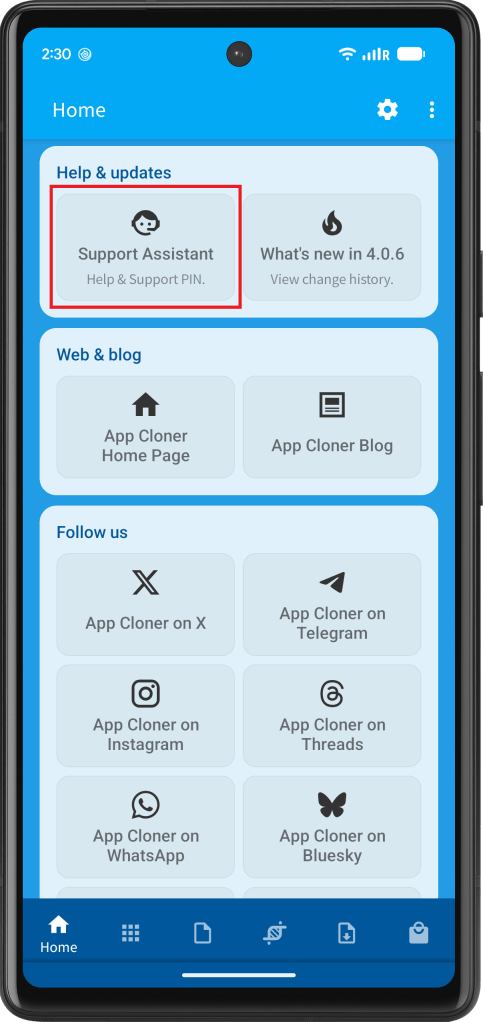
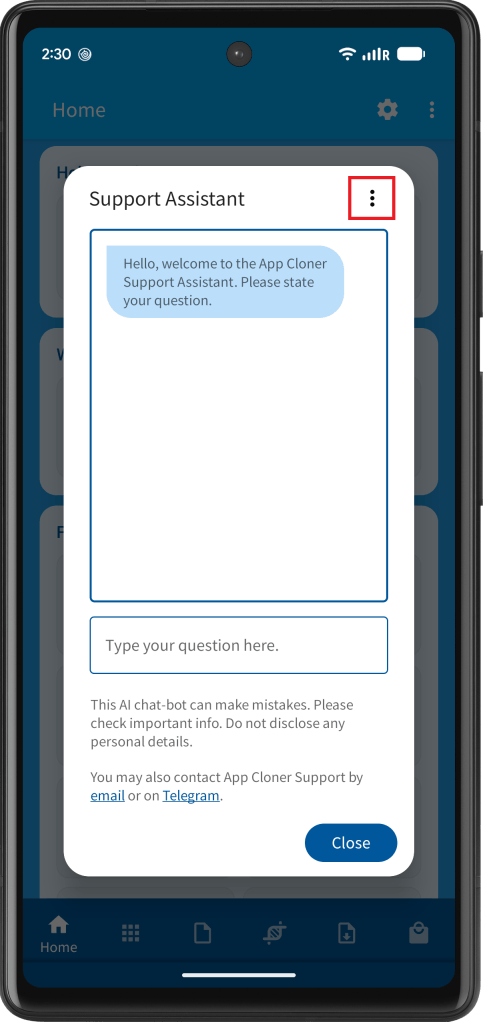
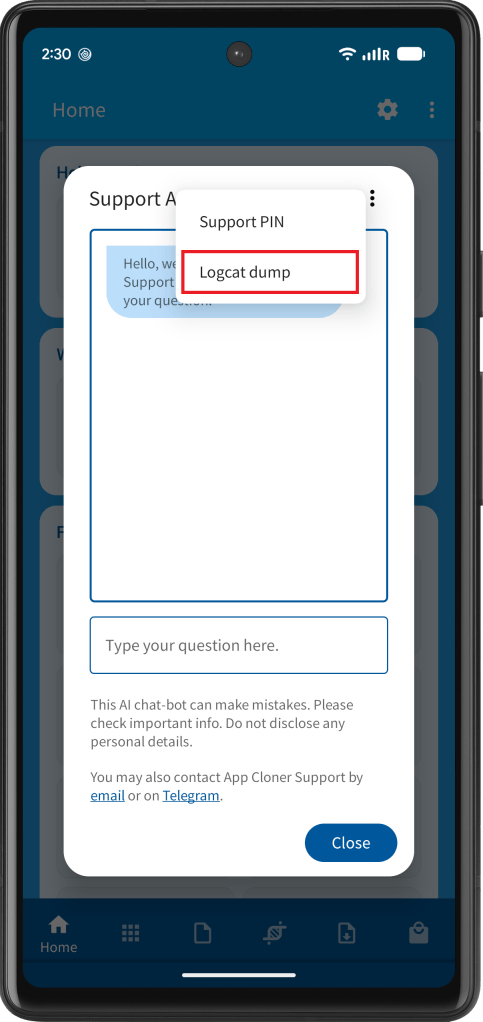
Open the Home screen in App Cloner and launch the Support Assistant. From the Support Assistant menu, select Logcat dump.
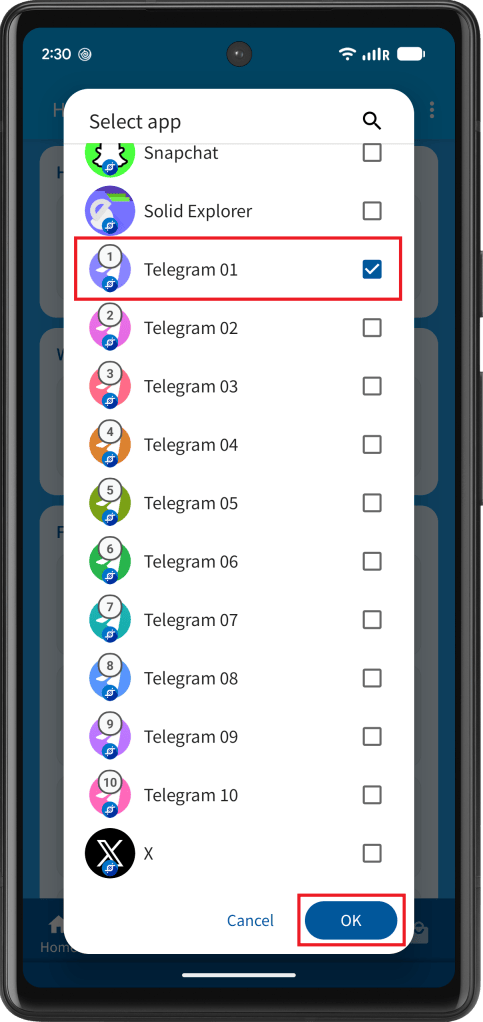
Next, select the cloned app you want to monitor and confirm your selection.
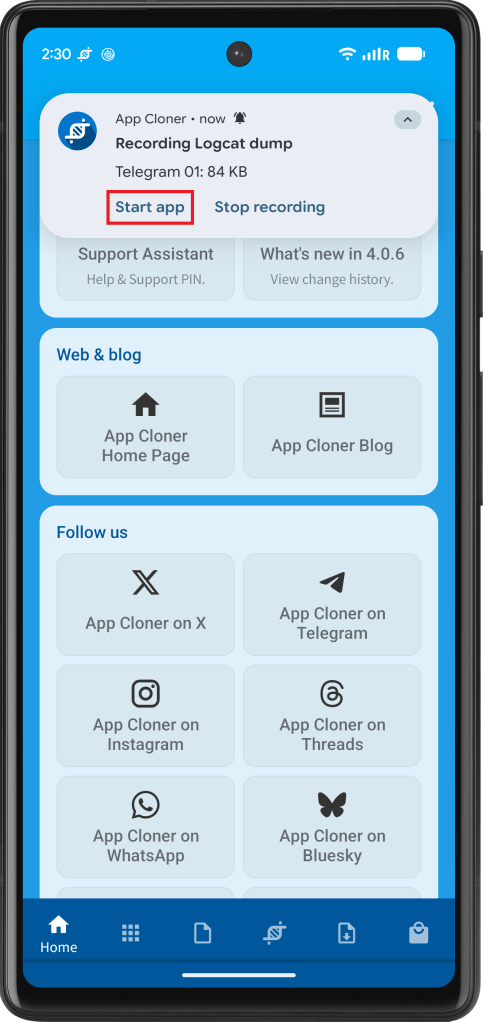
App Cloner will start recording the clone’s Logcat output and display an ongoing notification. The notification shows that the recording is active, displays the current size of the log file and provides an option to stop the recording.
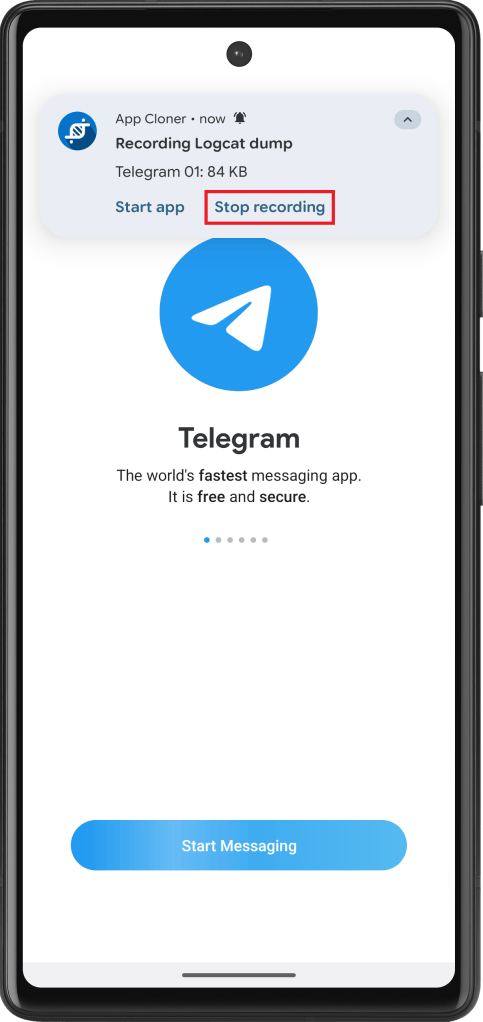
You can also launch the selected clone directly from the notification. This makes it easy to reproduce the crash or other problem while the relevant Logcat output is being captured.
Sharing the log
Once you have reproduced the problem, stop the recording from the notification.
App Cloner will automatically compress the recorded log and open the Android share dialog. You can then send the log to App Cloner Support by email or share it using another suitable app.


You must be logged in to post a comment.