
Here are some guidelines for registering your App Cloner account on a new device.
If you’ve made purchases through the green Play Store companion app, your in-app purchases are associated with your Google account.
Make sure the Google account used for your purchases is set as the primary or only account on your device, especially if you have multiple accounts. This is important because the Play Store associates all in-app purchases with the primary Google account at installation time, and switching to a different account afterward isn’t possible. Additionally, Google Play reads in-app purchases from a single Google account only, which is why it’s important to make all purchases using the same Google account. To confirm which account was used for a purchase, please visit https://pay.google.com.
To be absolutely sure you’re installing the companion app using the correct Google account, please use the web version of Google Play at https://play.google.com on a browser and install the App Cloner Premium & Add-ons companion app on your device. Make sure you’re signed in with the correct Google account.
Please check you have the most recent versions of both the Play Store companion app (green icon) and the main App Cloner app (blue icon) installed. If necessary, update them from https://play.google.com/store/apps/details?id=com.applisto.appcloner.premium and https://appcloner.com or https://appcloner.app, respectively, then open each app, starting with the green app followed by the blue main app.


If your purchases do not show up in Play Store companion app, try restarting your device as it clears the Play Store cache. Alternatively, consider uninstalling and reinstalling the companion app.
On certain devices, swiping away the companion app from the recent apps screen can disable its background access by the main App Cloner app, preventing the reading of purchases. To ensure proper functionality, follow these steps: open the companion app, verify purchases are showing with green tick icons, then return to the launcher screen by pressing the Home button and then launch the main App Cloner app.
Purchases should now show as blue tick icons under the Store tab. If you still have difficulties, ensure the Play Store companion app is permitted to run in the background in your Android system settings and is exempted from battery-saving apps like Greenify.
In App Cloner, please navigate to the Store tab and make sure you are logged in. This will also restore your purchases from the App Cloner database. Please ensure you have an active internet connection while using App Cloner so that your purchases are correctly read and activated. Please note that the email associated with your App Cloner account may differ from your Play Store / Google email.
For help and troubleshooting with the App Cloner login process, please see https://appcloner.blog/2024/08/30/app-cloner-login/.
Please check for any error messages upon launching App Cloner or within the Purchases tab, particularly on rooted devices or emulators (also refer to SELinux and Magisk error messages).
The main App Cloner app merges purchases made on the Play Store companion app with its own purchases from the App Cloner database, such as those made using cryptocurrencies. However, the Play Store companion app exclusively displays purchases made through the Play Store.
To restore Play Store purchases from the App Cloner database on a device without the Google Play Store or Google Play Services installed, you must first backup your Play Store purchases. To do so, please log into App Cloner on a device equipped with the Google Play Store. For further details, please refer to SELinux and Magisk error messages.
As stated on the App Cloner homepage https://appcloner.com or https://appcloner.app, App Cloner purchases can be activated on up to 5 Android devices.
With the Magenta package you can use App Cloner on 10 devices, with the Ultra edition on 30 devices, with Ultra+ on 100 devices and finally with Ultra++ on up to 300 devices (please see App Cloner packages summary). Should you require App Cloner on additional devices, please consider purchasing extra Ultra, Ultra+ or Ultra++ licenses using a distinct email address.
It’s imperative to use App Cloner exclusively on your own devices and refrain from sharing purchases with others. Violating this policy, as outlined in the App Cloner Terms of Use, will result in the suspension of your App Cloner account.
Avoid using custom Android ROMs or any software that may modify the device ID. Performing a factory reset or reflashing your ROM generates a new device ID, resulting in the registration of a new device. Each time a new device is added, App Cloner sends you an email showing how many devices you have remaining.
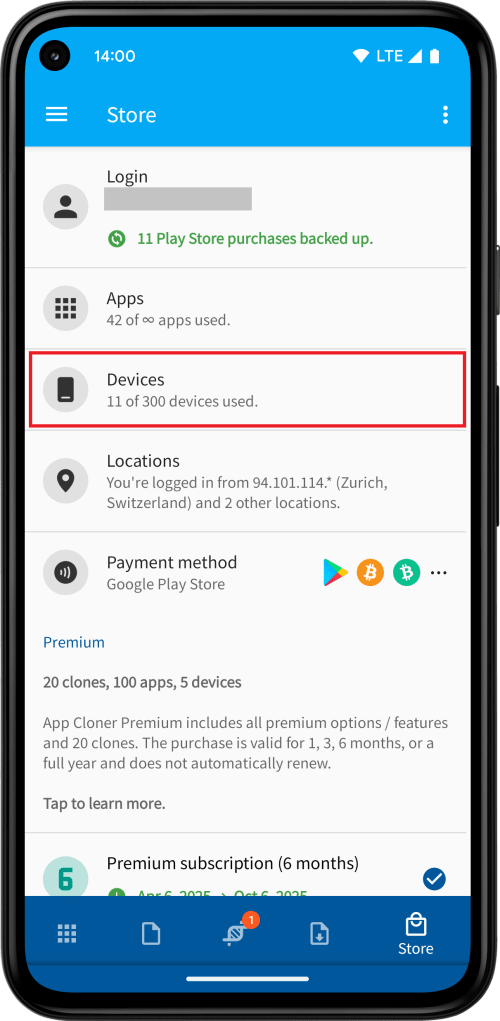
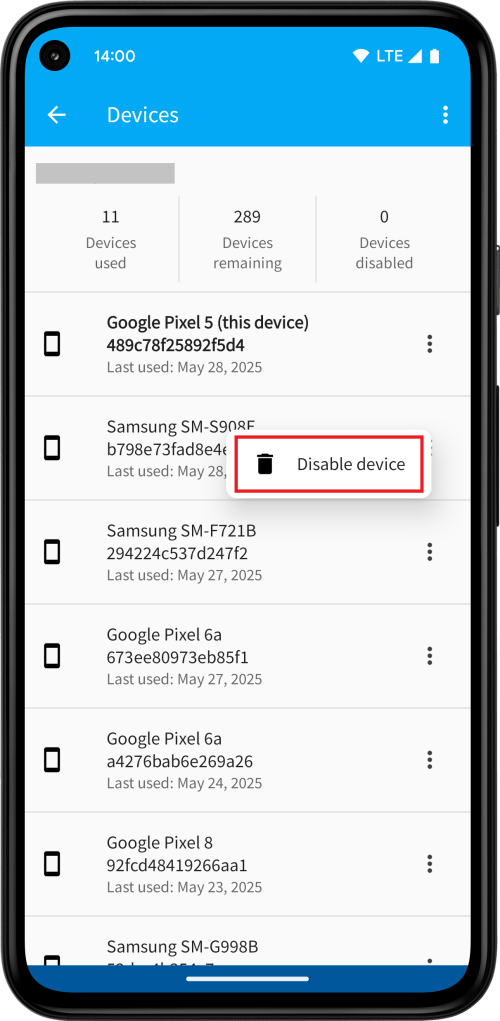
App Cloner includes a device management interface, letting you disable old or unused devices. To access it, go to the Store tab and tap on Devices. Please note that the Devices option only appears when you’re logged in.
You can remove old or unused devices once per month, or more frequently with advanced tiers (every 14 days for Ultra, 7 days for Ultra+ and every 3 days for Ultra++). Therefore, it’s advisable to disable any unused devices promptly. Ensure you only disable devices you no longer require, as this action is irreversible and permanently deactivates the device. After disabling a device you can register your App Cloner account on a new device.
If you are using the Change email feature (see the menu of the Store tab), remember that it solely alters the redirect email address for receiving the confirmation link. You’re still required to input the original App Cloner account email.
Starting with App Cloner 3.0, the legacy App Cloner 1.x premium is no longer supported or available. Please note that users of App Cloner 1.x have benefited from many years of free upgrades to App Cloner 2.x, while retaining access to original features and options. To take advantage of the latest premium features in App Cloner 3.0, we recommend upgrading to the current premium subscription.
If you’ve purchased the Huawei AppGallery edition of App Cloner, kindly be aware that this version uses a distinct billing system. Therefore, ensure to download App Cloner from the Huawei AppGallery and verify that both the HMS Core (Huawei Mobile Services) and Huawei AppGallery apps are up-to-date.
The Huawei version of App Cloner will soon be deprecated and will not receive any updates. Please make any new purchases through the main version available on the official App Cloner homepage. You can also log in using the same email address associated with your Huawei version of App Cloner.
 App Cloner
You must be logged in to post a comment.