
You can download and install App Cloner from the official App Cloner homepages https://appcloner.com or https://appcloner.app.
To install the App Cloner APK outside of Google Play, please enable installations from unknown sources. Make sure to only download App Cloner from the official sites.
The App Cloner user interface is divided into five main sections, accessible through the bottom navigation bar: Apps, APKs, Cloned apps, Cloned APKs and Store.
Apps & APKs
These two screens show original apps and APK files. These are the apps available for cloning.
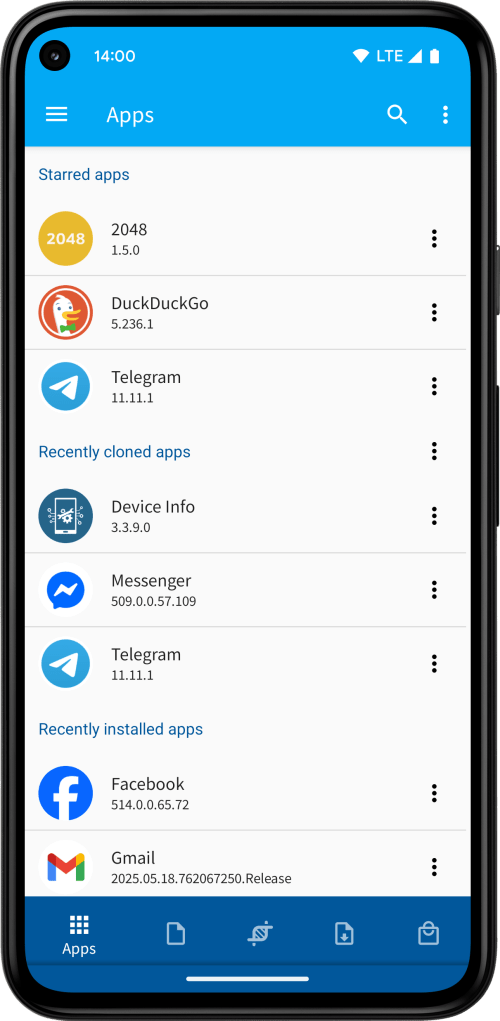
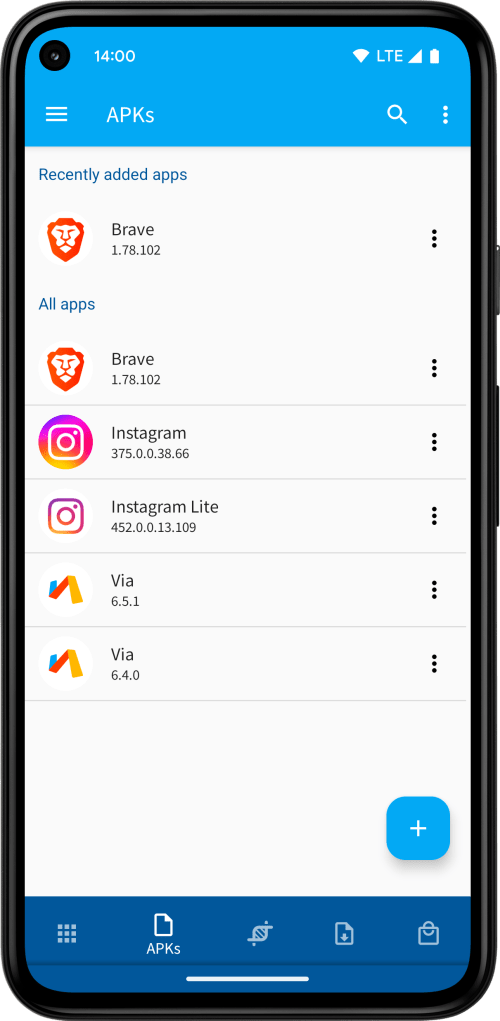
Apps
The Apps screen displays all currently installed apps.
In the App Cloner Settings screen, accessible from the side navigation or drop-down menu, you can toggle the Show system apps setting to include or exclude system apps. Keep in mind that cloning system apps is not recommended.
From the pop-up menu, you can launch an app, uninstall it, view its app info or save / share it. Long-press to select multiple apps, then save, share, clone, or uninstall them in bulk. Use the search button in the toolbar to filter apps by name.
Tap an app to customize its clone settings, then press the Clone button in the bottom-right corner to start cloning the app. The cloning process can take anywhere from a few seconds to several minutes, depending on the app’s type and size and your device’s performance. Please keep App Cloner in the foreground during the cloning process.
Keep an eye on the dialog during cloning for any warnings, as you may need to adjust some settings to get the clone to work properly. If the cloned app crashes, try enabling Cloning mode > Skip native libraries or switch to the Manifest cloning mode. If issues persist, enable Increase compatibility or Ignore crashes in the Cloning options group and try cloning again.
Keep in mind that not all apps can be cloned successfully. Some use copy protection and cannot be cloned at all or may crash on launch or during use. If that happens, try cloning an older version of the app using its APK file. You can also experiment with options like Single process, Process name workaround, Package name check workaround, APK check workaround, Clone check workaround and User-Agent workaround to improve compatibility.
Once cloning is complete, you’ll be prompted to install the cloned app. The first time, you’ll need to grant App Cloner permission to install apps (please see Allowing app installations from unknown sources). If you encounter the ‘Unsafe app blocked’ warning, please refer to Unsafe app blocked message.
App Cloner also supports alternative installation methods, such as using wireless debugging and root access (see the Settings screen for details). After installation, tap Launch to open your clone.
To create multiple clones, be sure to assign a unique Clone number to each one. Using the same clone number will update any existing clone with that number (this lets you change the clone settings while keeping the app’s existing files and settings).
You can also use batch cloning to generate multiple clones at once by specifying a range of clone numbers.
APKs
You can also clone apps without installing them by adding APK files directly to the APKs screen. This is useful if you want to clone an older version while keeping the latest version installed, or if you’d prefer to apply privacy options before installing a potentially untrusted app.
Tap the Add button to add APK files from different sources. To add a single APK file from your device storage, choose From a file. To add multiple APKs from a folder, select From a directory.
If an app is already installed, you can copy its APK to the APKs screen by choosing From an installed app. This lets you uninstall the original app while still being able to clone it from the saved APK.
Choose From a web page to search online for a downloadable APK. This opens Google by default, where you can enter a search like “<App Name> APK”. Only download APKs from trusted sources. For safety, it’s best to use the options From apkmirror.com or From apkpure.com to get APK files directly from those reputable sites.
Finally, you can download and add an APK file by providing a URL.
The pop-up menu allows saving, sharing or deleting the APK file. Long-press to select multiple apps, then save, share, clone, or delete them in bulk. Use the search button in the toolbar to filter apps by name.
Tap an app to customize its clone settings, then press the Clone button in the bottom-right corner to start cloning the app.
Cloned apps & Cloned APKs
These two screens show installed clones and generated APK files. Note that clones cannot be cloned again.
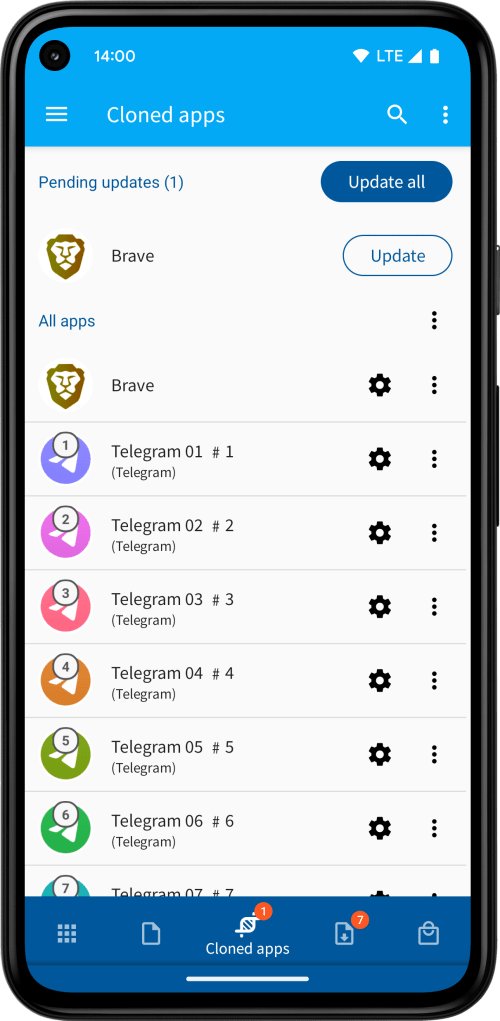
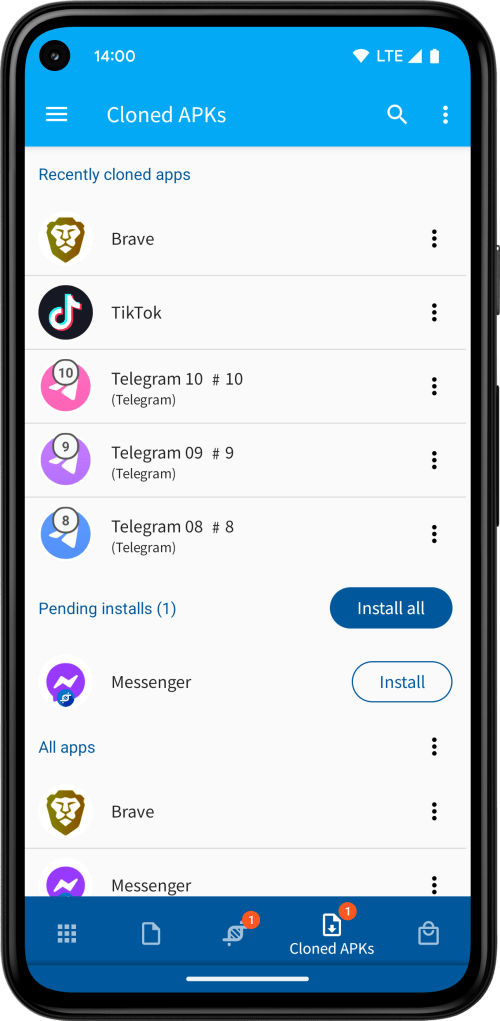
Cloned apps
The Cloned apps screen lists all currently installed clones. From the pop-up menu, you can launch or uninstall a clone, view its app info, or save / share its APK file. If a clone crashes or doesn’t function properly, use the Report app issue option as some issues can be resolved in future App Cloner updates.
If you’ve purchased the Runtime modding options add-on, you can tap Edit clone settings (or the cog icon) to modify supported runtime options (those marked with an arrow symbol). Press Send to apply the new settings and restart the clone. Keep in mind that only certain modding options support runtime changes. To adjust other options, you’ll need to reclone the app from the Apps screen. Note that you can always reload existing settings from an installed clone.
If you’ve just purchased the Runtime modding options add-on, you’ll need to reclone the original app one final time to enable it to receive new clone settings after installation.
If you’ve purchased the Export & import app data add-on, you can use the Export app data and Import app data options to back up and restore a clone’s internal data and files, including settings, preferences, and any login tokens or cookies stored as part of the app data.
This lets you transfer clones between devices or maintain multiple app states as restore points. Exported data is encrypted, cannot be modified, and is only compatible with clones of the same original app (though it can be re-imported to clones with a different clone number).
Note: Android accounts, files from internal / external SD cards, and cloud-based settings are not included. The export / import process forcefully closes the app to prevent file locks, and importing will overwrite existing data without recovery.
Please be aware that this may not work for apps that encrypt their internal data. Also, the feature only applies to cloned apps, not original apps.
The Layout inspector lets you explore and modify the cloned app’s view hierarchy, ideal for making changes with the Modify views option. The Preference editor gives you access to the app’s internal settings and preferences.
Use Manage blocked hosts to review and update any hosts blocked via the Hosts blocker option. Manage blocked notifications lets you adjust which notifications are allowed, blocked or muted.
The File access monitor shows which files the cloned app interacts with (requires enabling the File access monitor option), while the Activity monitor displays opened activities within the app (requires enabling the Activity monitor option).
Finally, the Show identity values option lets you view the current identity details of the cloned app, such as Android ID, serial number, IMEI, IMSI, MAC addresses, and advertising IDs. You can also scan identity values from a QR code or copy them to use as new clone settings.
You can also save or share the cloned app.
Use Update to reclone or refresh a clone, even if it doesn’t appear under Pending updates. This is especially helpful after installing a new version of App Cloner that includes improvements to modding options.
You can also long-press to select multiple apps for saving, sharing, launching, updating or uninstalling. Bulk export and import of app data is supported as well. Use the search button in the toolbar to quickly filter apps by name.
Pending updates
The Pending updates section lists installed clones that are eligible for an update. App Cloner does not automatically update clones when the original app receives an update (e.g. via the Google Play Store). To update, tap the Update button for an individual clone or use Update all to refresh all clones at once.
When updating a clone, App Cloner reuses the original clone settings used during the initial cloning process, regardless of any changes made to runtime settings since then. Once the new clone is created, install it directly over the existing one to preserve all app data, preferences and login sessions. Avoid uninstalling the old clone first, as this would erase its data.
When updating clones, keep in mind that newer app versions might introduce copy protection or other changes that could break compatibility. Therefore it’s strongly recommended to purchase the Safe update add-on and enable the Safe update checkbox when updating. This lets you revert to the previous working version if needed, without uninstalling the clone or losing any data. To restore a previous version, go to the Cloned APKs screen and choose Revert to previous version from the pop-up menu.
Cloned APKs
The Cloned APKs screen lists the APK files of all your generated clones. These act as backups, letting you reinstall or save clones later if needed. Each time you create a clone with a specific clone number, the corresponding APK file is replaced.
Generated APKs are stored internally within App Cloner. To automatically copy them to external storage during cloning, enable the Export cloned apps setting in the App Cloner Settings. To reduce App Cloner’s internal storage usage, enable the Delete cloned APK after installation setting. This automatically removes the APK file once the app has been installed successfully.
The pop-up menu lets you save, share or delete APKs. You can also report issues if a clone crashes or view the clone settings used (note that clone settings are read-only for cloned APK files).
Long-press to select multiple files and batch save, share, delete or install. Use the toolbar search to filter by app name.
Pending installs
The Pending installs section lists the APK files of generated clones that aren’t currently installed. If you canceled the installation after cloning or later uninstalled a clone, you can reinstall the latest version from here. Tap Install to reinstall an individual app or Install all to reinstall all pending clones at once.
Store
The Store screen lets you:
- Log in to your App Cloner account
- Upgrade to the premium version
- Buy add-ons, packages and editions to unlock more clones and / or additional features
- View & manage your apps, devices and login locations
The free version of App Cloner allows creating a single clone. The premium version of App Cloner allows creating up to 10 clones and the use of all the premium modding options. Note that you can update clones as often as you want. You can get additional packages or editions to unlock more clones, options, features and to clone certain apps.
The premium subscription is available in four options: 1 month for USD $16, 3 months for USD $24, 6 months for USD $32, or 1 year for USD $48 (recommended at just $4 per month). App Cloner add-ons are yearly subscriptions, while packages and editions are single lifetime payments. Note that packages and some add-ons require a premium subscription.
Prices on the Google Play Store may vary by country due to taxes.
Please remember that higher packages do not automatically include lower packages, premium or add-ons, except for the Ultra editions, which include lifetime premium, all add-ons (lifetime) and all packages.
For more information on the various packages, please visit App Cloner packages summary.
You can use App Cloner on up to 5 devices (or 10 devices with the Magenta package, 30 with Ultra, 100 with Ultra+ and 300 devices with Ultra++).
Each time a new device is added, App Cloner sends you an email showing how many devices you have remaining.
You can remove old or unused devices once per month, or more frequently with advanced tiers (every 14 days for Ultra, 7 days for Ultra+ and every 3 days for Ultra++).
To view and manage your devices, use a previously registered device where you’re logged in and go to Purchases > Manage devices.
Google Play Store
You can make Play Store purchases via the separate App Cloner Premium & Add-ons app. App Cloner merges Google Play Store purchases with its own purchases. Please make sure to keep the companion app installed alongside App Cloner.
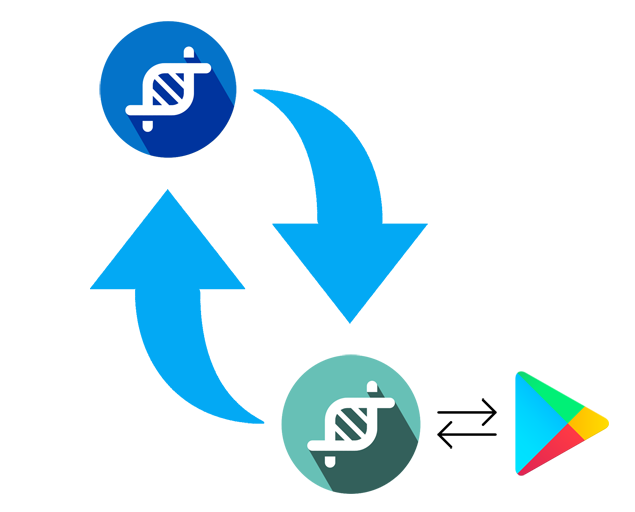
Please note that the Play Store companion app doesn’t include any cloning features. Its low average rating is mostly due to confusion, many users don’t realize that two separate apps are required and that direct links to the App Cloner website aren’t permitted on Google Play. If you’re happy with App Cloner, consider leaving a positive rating to help improve the average, it would be greatly appreciated!
If your existing Google purchases aren’t recognized, you may have multiple Google accounts on your device and Google Play might be using the wrong account to validate the purchases. Unfortunately, Google Play doesn’t share purchase data across accounts and doesn’t let apps choose which account to use. Make sure the account used for the purchases is set as the first (primary) or only Google account in your Android settings. To check which account was used for your purchases, please visit https://pay.google.com.
Rebooting your device can help by clearing the Play Store cache. If that doesn’t work, try uninstalling and reinstalling App Cloner. Alternatively, you can use the web version of Google Play to install the companion app while logged into the correct Google account.
As a last resort: uninstall the app, remove all Google accounts except the one used for the purchase, reboot your device and then reinstall the app.
Cryptocurrency
If you’re unable to use the Google Play Store, you can make purchases with one of the following cryptocurrencies instead:
- Bitcoin (BTC)
- Bitcoin Cash (BCH)
- Litecoin (LTC)
- Ethereum (ETH)
- Tether (USDT)
- USD Coin (USDC)
- Binance (BNB)
Please see Unlock App Cloner with Crypto: Tips for Secure Transactions for help on making crypto transactions in App Cloner.
Support
If you have difficulties restoring your purchases, please see How to restore purchases.
You can get in touch with App Cloner Support at support@appcloner.app or on Telegram at https://t.me/appcloner. We’re glad to help and answer your questions. Just note that due to a backlog of support requests, we usually prioritize Ultra edition users.
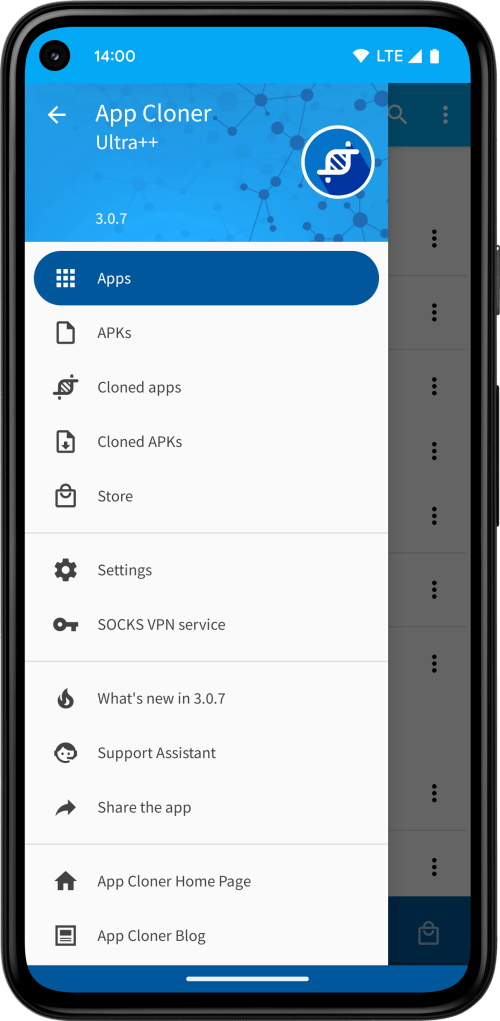
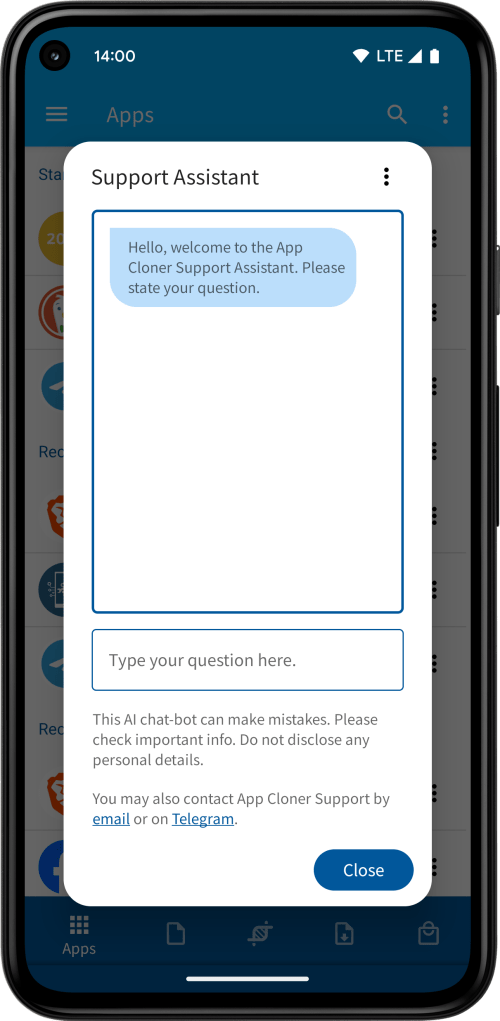
You’re also welcome to use the AI-powered Support Assistant built directly into App Cloner (see the side navigation menu).
 App Cloner
You must be logged in to post a comment.