
Overview
The Remote control feature allows you to view and interact with one or more cloned apps directly from a web browser, without needing to physically touch the device. You can send taps, swipes, keyboard input and clipboard content to your clones in real time, monitor their screens as a live stream and perform management actions such as restarting apps or generating new identities, all from a single browser interface.
Remote control requires the Ultra edition of App Cloner and the Remote control extension. In addition, each clone you wish to control must have been created with the Automation option Remote control enabled at clone creation time; this option cannot be added retroactively to existing clones.
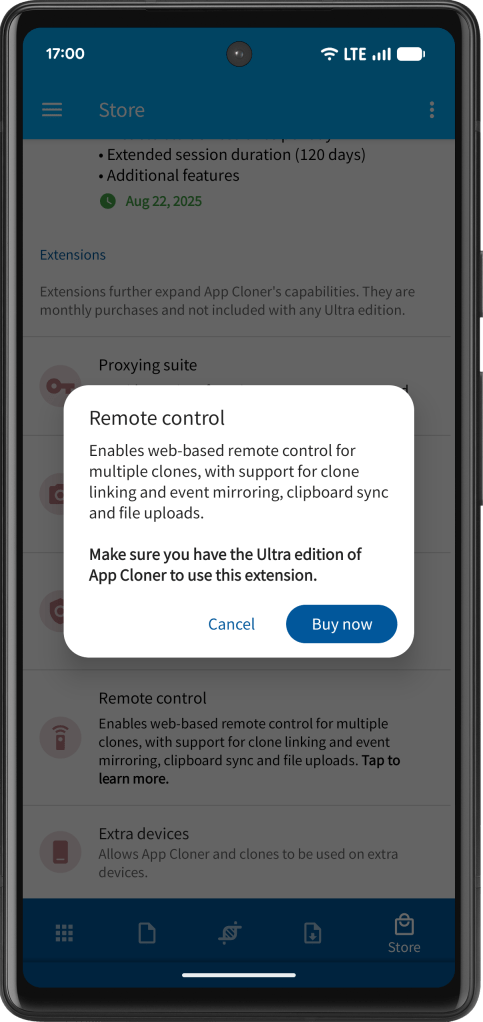
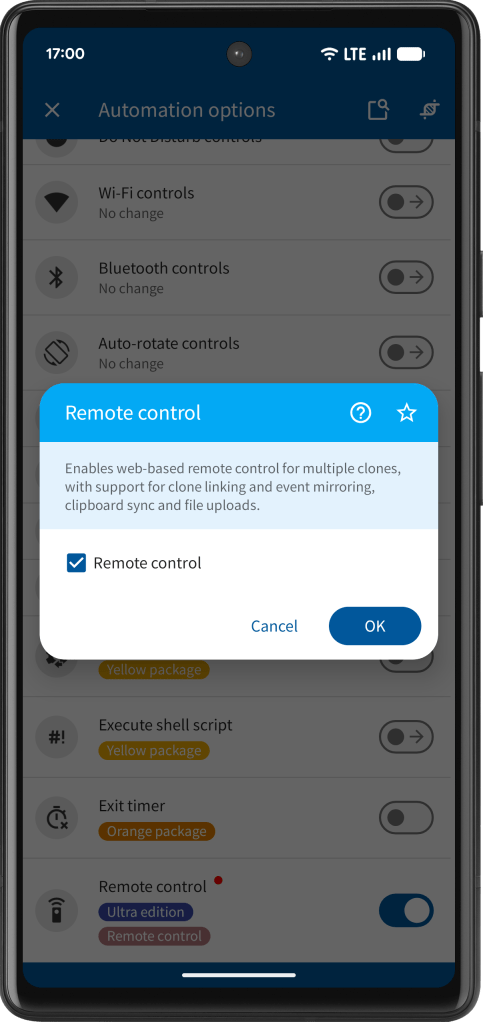
To start a remote control session, App Cloner must be installed and running on the device. The App Cloner HTTP server is used to serve the remote control interface and handle incoming events; it starts automatically when you access the Remote control feature.
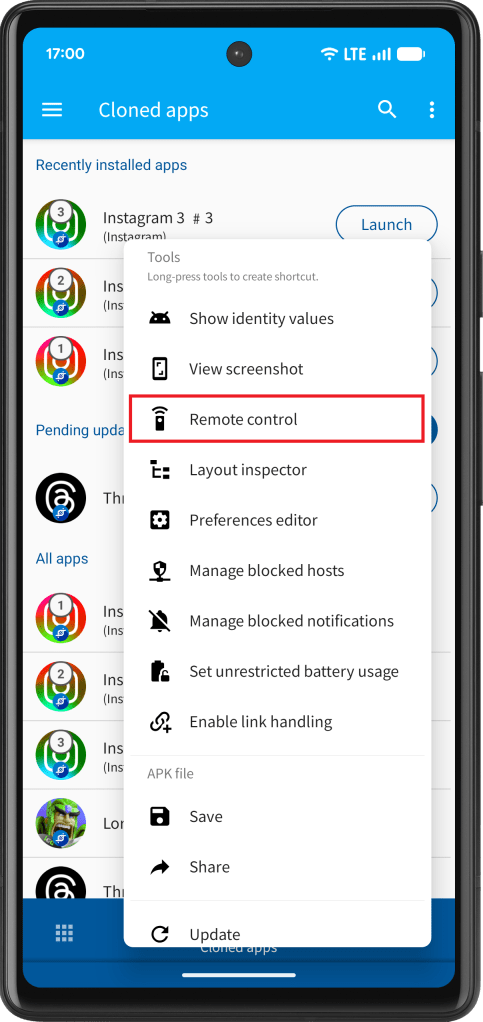
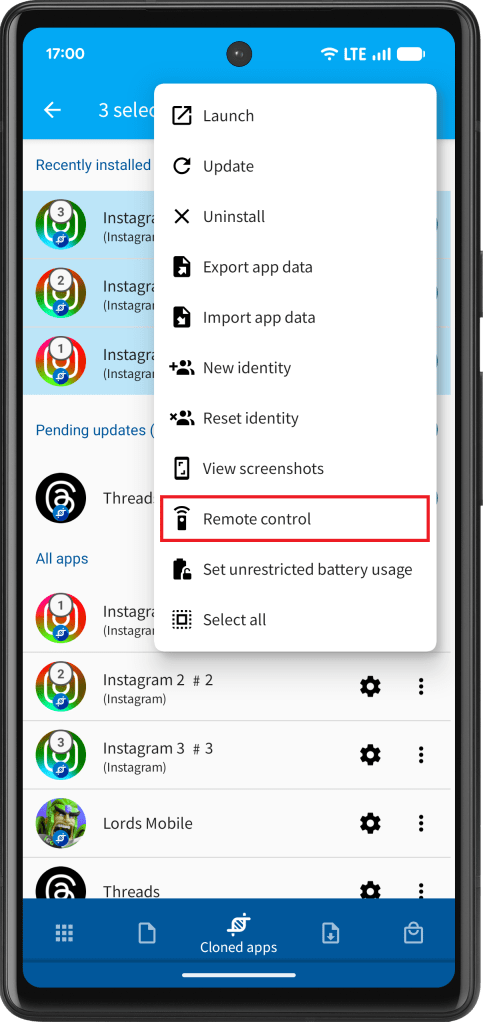
You can open a remote control session from the cloned apps screen by opening a clone’s pop-up menu or by multi-selecting several clones and using the context menu to open all of them together in a single session.
Remote control interface
Once the Remote control page opens in your browser, each selected clone is displayed as a card in a gallery layout. Each card shows a live view of the clone’s screen, a label identifying the app at the top, and a row of controls along the bottom. You can have as many clone cards on screen simultaneously as you have clones running with remote control enabled. Please note that running more clones at the same time increases both bandwidth usage and CPU load on the device. For best performance, it is recommended that both the mobile device and your computer are connected to the same high-speed local Wi-Fi network.
Interacting with a clone is straightforward: move your mouse pointer over its screen to activate it. The mouse pointer position and movement is indicated by a small green dot on the clone’s screen. Then click, drag or scroll as you would on a touchscreen. Left-click corresponds to a tap or primary pointer action, right-click sends a secondary pointer action and scrolling the mouse wheel sends vertical scroll events to the app. Keyboard input is forwarded to whichever clone card your pointer is currently hovering over or has most recently interacted with. The clone’s soft keyboard is automatically hidden in remote control mode.
The active clone is highlighted with a subtle border glow so you always know which device is receiving your input.
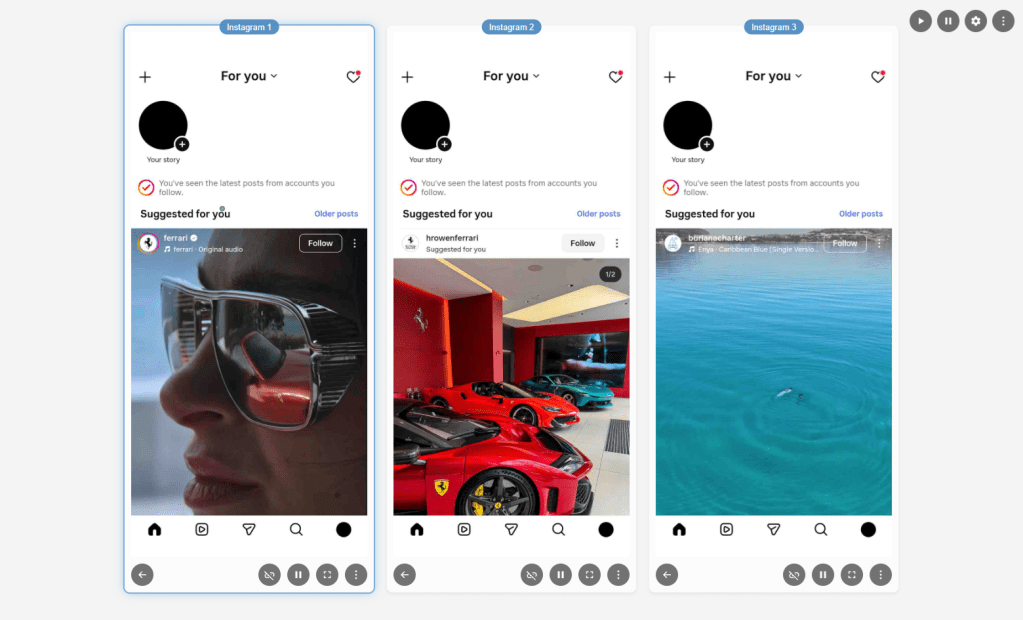
Stream playback controls
Each clone card has a play / pause button in its footer that lets you pause the live stream for that individual clone. When paused, the live view freezes on the last received frame and stops consuming bandwidth, which is useful when you only need to monitor a subset of your clones at any given moment. Pressing play resumes the live stream immediately.
At the top of the page, two global buttons, Resume all and Pause all, apply the play or pause action to every clone at once. This is convenient when you want to conserve resources during a break or resume monitoring all clones simultaneously after a pause.
Display settings
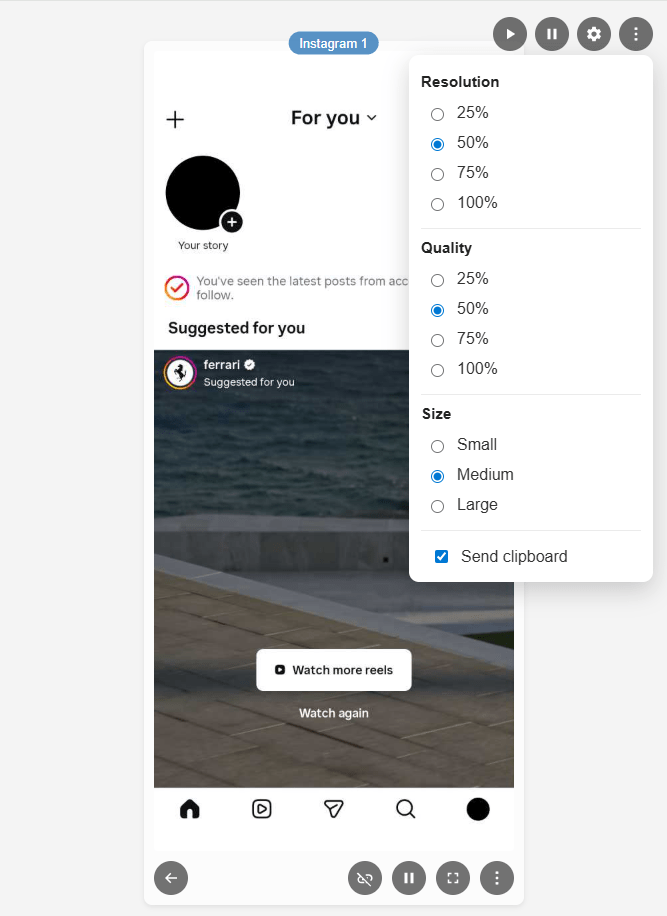
The settings menu, accessible via the gear icon in the top-right corner, gives you control over how screenshots are captured and displayed.
Resolution determines the scale at which each frame is captured on the device before being sent to the browser. A lower resolution reduces the amount of data transmitted per frame, resulting in faster refresh rates and lower bandwidth usage, at the cost of image sharpness. A higher resolution produces crisper images but increases the data per frame and may reduce streaming smoothness on slower connections.
Quality controls the JPEG compression level applied to each captured frame. Lower quality values produce smaller files and faster streaming, while higher quality values preserve more visual detail. In practice, tuning resolution and quality together lets you find a balance between image clarity and streaming speed that suits your connection.
Size sets the display width of each clone card in the gallery, giving you the choice between a compact, standard, or large layout depending on your screen size and how many clones you are monitoring simultaneously.
All settings are saved automatically to your browser’s local storage and are restored the next time you open the Remote control page.
Clipboard sync
The Send clipboard option in the settings menu enables one-way clipboard synchronization from your browser to the Android device. When this option is enabled and a clone is active, pressing Ctrl+V (or Cmd+V on macOS) will transmit the text currently on your computer’s clipboard directly to the focused clone, where it is injected as if it had been pasted on the device itself.
It is important to understand that clipboard sync is one-directional: it sends your browser’s clipboard to the device, but does not read or retrieve anything from the device’s clipboard back to your computer. This feature is particularly useful for pasting URLs, login credentials or other text content into apps running on your clones without having to type them manually.
Global actions
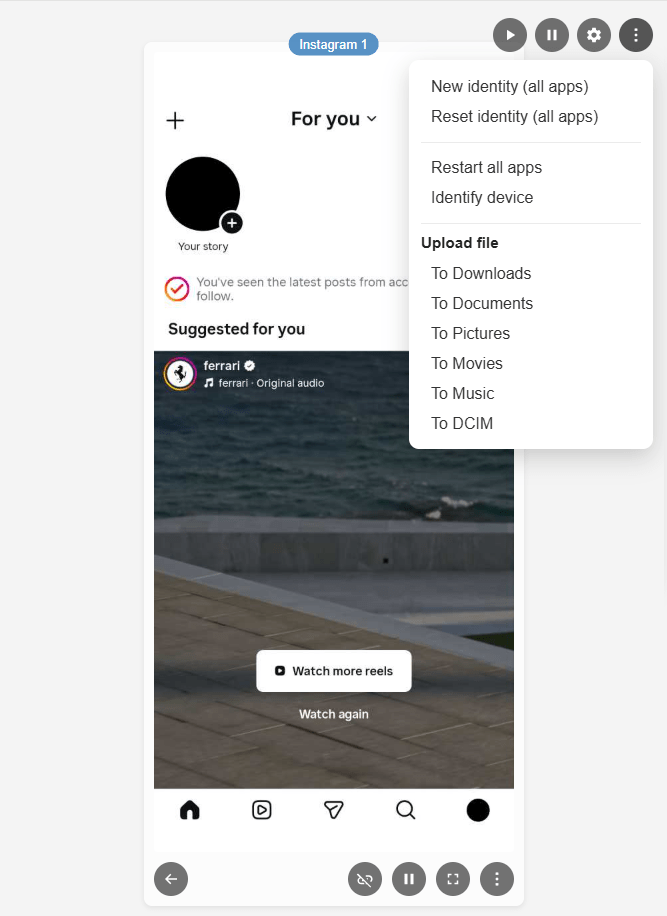
The global More menu at the top of the page provides actions that apply across all clones in the current session. Restart all apps restarts every clone simultaneously. If any clones support identity management, New identity (all apps) and Reset identity (all apps) apply the corresponding identity action to all eligible clones at once.
The Identify device option triggers a visual and audible signal on the physical device to help you identify, which device a particular session belongs to when you have multiple devices in use.
File upload
The More menu in the top-right corner of the page also includes a file upload section that allows you to transfer a file from your computer to the device and save it into one of several standard folders: Downloads, Documents, Pictures, Movies, Music or DCIM. Selecting a destination folder opens your browser’s file picker; once you confirm the file, it is uploaded directly to the chosen folder on the device and a confirmation notification is shown when the transfer completes.
Per-clone actions
Each clone card has a More button in its footer that provides actions specific to that individual clone. From this menu you can bring the clone’s app to the foreground if it has been pushed to the background, restart the app, and, if the clone was created with identity management enabled, generate a new identity or reset the clone’s identity to its original state.
You can also change the order of clones by moving clone cards left or right. The URL in the address bar is updated accordingly, so you can copy, share or bookmark the link with the new order.
The Back button in each card’s footer sends the Android back action to that clone, equivalent to pressing the system back button on the device.
Fullscreen view
Clicking the fullscreen button on any clone card expands that clone’s screen to fill the browser viewport. In fullscreen mode you can interact with the clone exactly as you would in the gallery view, pointer events, keyboard input and scroll events all continue to work normally. Clicking anywhere outside the expanded image, pressing Escape or navigating back closes the fullscreen view and returns you to the gallery.
Event mirroring
Event mirroring is one of the most powerful capabilities of the Remote control feature. It allows every interaction you perform on a primary clone, e.g. taps, drags, scrolls and keystrokes to be simultaneously replicated to all other clones in the session, enabling you to control many clones as if they were one.
To enable mirroring, click the Link button (the chain-link icon) in the footer of the clone you want to use as your primary control. When a clone is linked, its Link button turns blue to indicate that it is the source of mirrored events. Any pointer or keyboard input you direct at the linked clone is forwarded not only to that clone but also to every other clone in the session that does not itself have the Link button active. Unlinked clones act as passive mirrors, receiving the same events as the primary clone and executing them in parallel.
This behavior makes event mirroring especially useful when you want to perform the same sequence of actions across multiple clones simultaneously, for example, navigating through identical on-boarding flows, entering the same data across several accounts or executing the same in-app actions on many clones at once. Because all clones receive the exact same pointer coordinates and key events at the same time, their screens stay in step with each other throughout the interaction.
Should you need to make individual adjustments, you can still control the unlinked clones, having the Link button disabled, individually.
To stop mirroring, click the Link button again on the primary clone to deactivate it. Events will then be sent only to whichever clone your pointer is hovering over, as in normal single-clone operation.
Troubleshooting
For the Remote control feature to work reliably, and to help prevent Android from terminating apps in the background, both App Cloner and the relevant clones must be granted the following permissions:
- Display over other apps
This permission may also be called Display popup windows. - Start in background
This permission may also be called Open new windows while running in the background.
The second permission is not available on all Android devices. If your device does not provide it, granting the first permission is usually sufficient. App Cloner will notify you if these permissions have not been granted correctly.
The Remote control interface will display an error message if there is a communication problem with the cloned app or if the app has not been started. An audible alert will also be played when an error is detected.
If clones are still being terminated in the background, make sure App Cloner and the affected clones are excluded from battery optimization. You can also clone the app with the Request ignore battery optimizations option enabled. If needed, you may additionally try the Persistent app option.
The number of apps your device can keep running in the background at the same time depends largely on the amount of available RAM. Devices with at least 12 GB of RAM are recommended, although actual performance will also depend on the specific apps being used.
On older Android versions, video playback, live video feeds and other hardware-accelerated content may not appear correctly in the remote view because of Android screen capture limitations.
 App Cloner
You must be logged in to post a comment.