
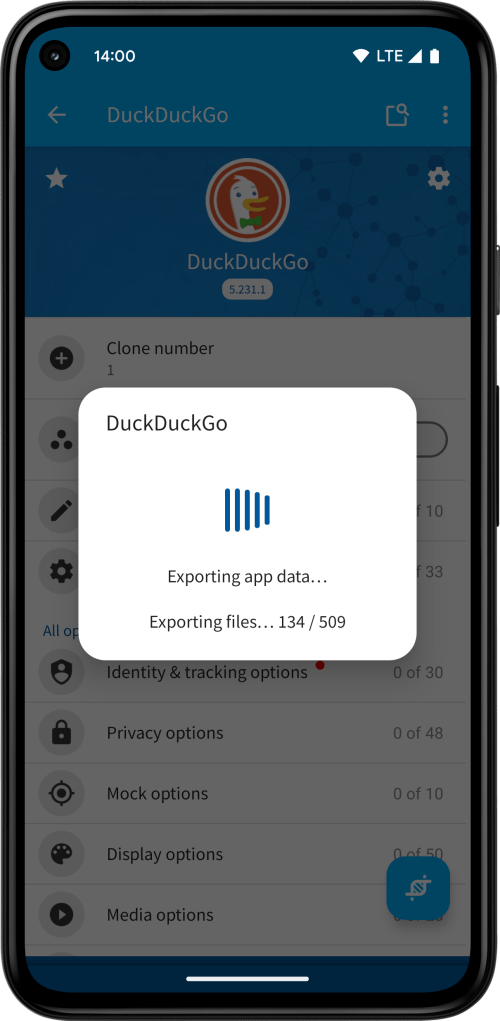
App Cloner 3.0 provides an ADB-based API for triggering app data exports and imports, available with the Ultra++ edition.
To use this API, make sure App Cloner is running on the device.
To initiate an app data export, run the following ADB command:
adb shell am broadcast -p com.applisto.appcloner -a com.applisto.appcloner.api.action.EXPORT_APP_DATA --es package_name <packageName> --es path <path> [--ez include_runtime_settings <true|false>] [--es password <password>]
To initiate an app data import, run the following ADB command:
adb shell am broadcast -p com.applisto.appcloner -a com.applisto.appcloner.api.action.IMPORT_APP_DATA --es package_name <packageName> --es path <path> [--ez include_runtime_settings <true|false>] [--ez include_identity_values <true|false>] [--es password <password>]
The –es package_name parameter specifies the package name of the cloned app, which you can see when opening the app info dialog of the cloned app under Cloned apps. The –es path parameter specifies the path of the .data file or the path of a directory.
Optionally, you can provide the –ez include_runtime_settings boolean parameter (true or false) to include or exclude runtime clone settings (they’re included by default) and the –ez include_identity_values boolean parameter (true or false) to include or exclude identity values as part of the runtime clone settings (they’re excluded by default and can only be included when also including runtime clone settings).
The –es password parameter can be optionally used to export / import password-protected app data files.
If you specify a directory as the path, App Cloner will use the default save / share file name for the cloned app, as set in the App Cloner settings.
If you run multiple export / import ADB commands, App Cloner will queue them as tasks to be processed one after another. You’ll receive notifications when each export or import completes successfully or if an error occurs.

 App Cloner
You must be logged in to post a comment.