
A new look
App Cloner 3.0 brings a revamped user interface with a sleek and modern theme. Enjoy rounded dialogs, buttons, and menus, along with updated switches, tabs, floating buttons, and a stylish new font for a polished look.
A simpler layout
App Cloner 3.0 replaces the mixed top and bottom tabs with a streamlined bottom navigation bar, featuring the following pages:
- Apps → Shows installed apps that you can clone.
- APKs → Allows adding APK files to clone without prior installation.
- Cloned apps → Shows installed clones.
- Cloned APKs → Shows generated cloned APK files.
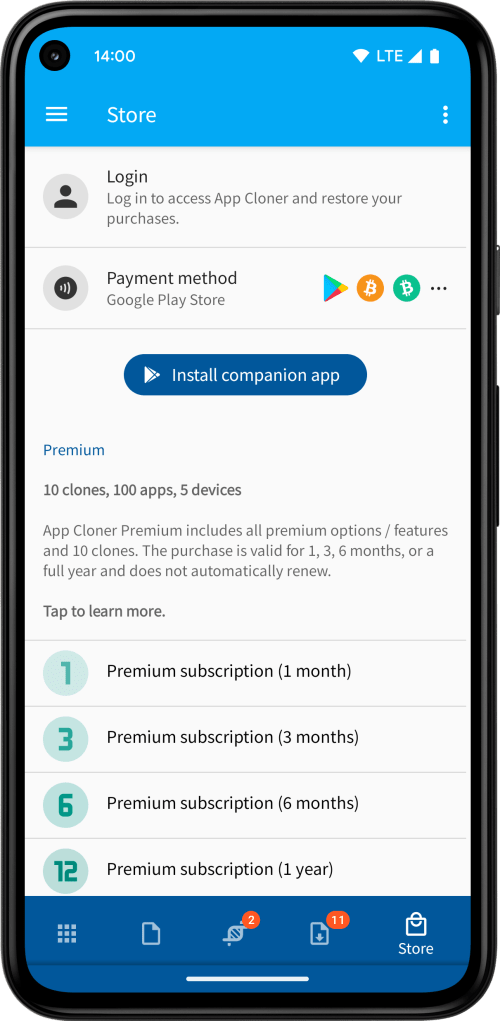
- Store → Log in, manage devices and purchase premium, add-ons, packages & editions.
Pending updates are now displayed in a dedicated section inside Cloned apps, while pending installs appear in a section inside Cloned APKs. Additionally, the number of pending updates and installs is shown as badges on the bottom navigation bar (this can be turned off in Settings).


App screen
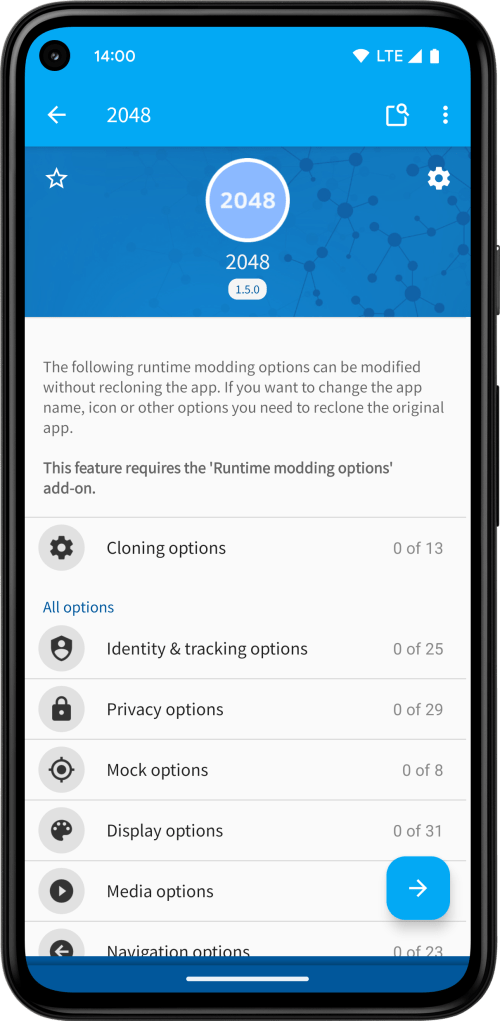
The Clone button is now located at the bottom of the app screen for easier access. Since it’s frequently used, the Cloning mode option is now placed directly on the main screen below the Clone number option. The Cloning mode option now includes the Skip native libraries option, however, this is only available in Default cloning mode (not in Manifest cloning mode).


The app’s name and icon settings are grouped under a new section called Name & icon options. The Change icon color option now enables Automatic hue by default, assigning a unique color variation to each clone number.
Tip: On the app screen, tap the app’s name to access the Name option, or tap the app’s icon to access the Change icon color option.


The Send settings button for cloned apps is also located at the bottom of the app screen. This button allows you to send changes to runtime options directly to an installed clone without needing to reclone the app. Keep in mind that not all options are runtime options. Runtime options are marked with an additional arrow symbol inside the switch.
Tip: Long-press the Send settings button to send the settings and restart the clone immediately. This shortcut bypasses confirmation dialogs.

Option dialogs
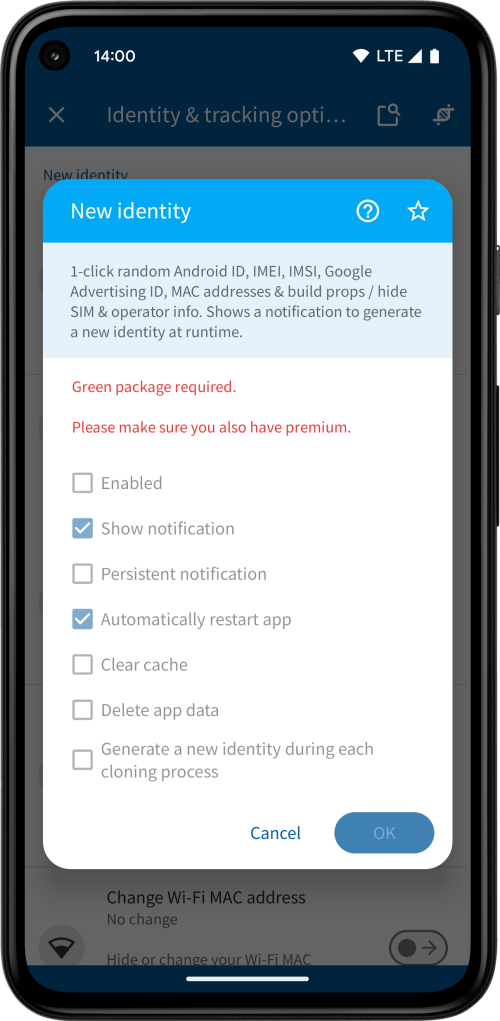
You can now open an option’s dialog in preview mode, even if you don’t have the premium subscription or required package to use the option. This helps you better understand what the option does and how it can be used.
If a related blog post is available, tap the question mark icon to visit the App Cloner Blog for more information.
To star or unstar an option, tap the star icon. You can choose to star options for all apps or just the current app.
Tip: Long-press an option in the list view to star it automatically for all apps. Long-pressing again will unstar it.
Tip: Certain on / off options can be toggled directly by tapping the switch, without opening the option dialog.

Option descriptions
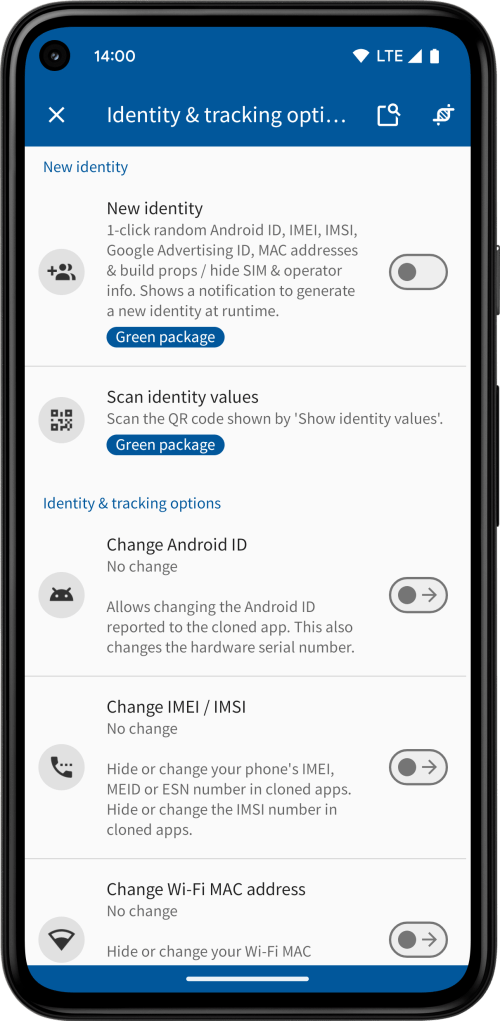
Option descriptions are always displayed at the top of the option dialog. By default, they are hidden in the list view. To display descriptions in the list view as well, select Show descriptions from the menu.

Premium subscription
As previously communicated, the old App Cloner 1.x premium is no longer available in App Cloner 3.0.
Regarding App Cloner 1.x, please remember that you’ve enjoyed several years of free upgrades to App Cloner 2.x while retaining access to the original App Cloner 1.x options and features.
If you haven’t already, consider upgrading to the premium subscription to unlock hundreds of additional options and features.
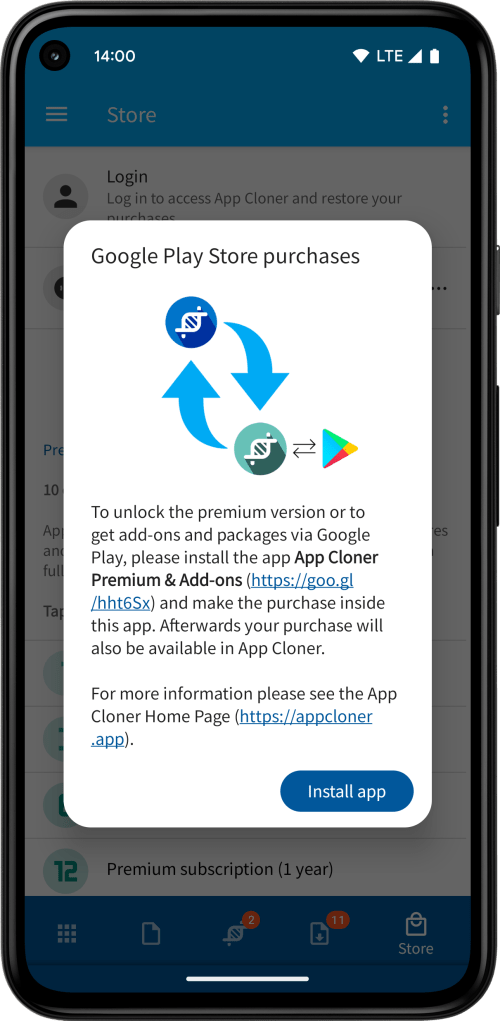
Packages & editions
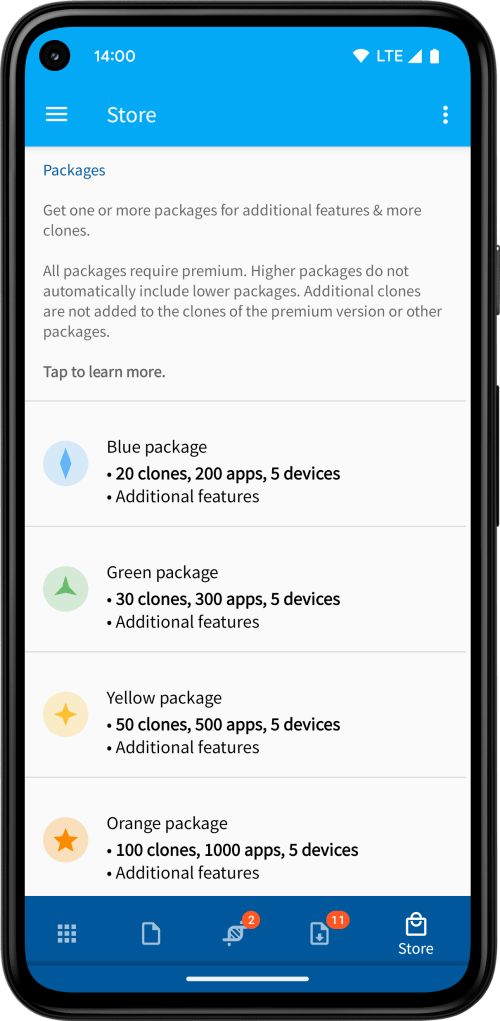
The term donation is no longer used. App Cloner 3.0 offers packages and editions:
Blue package (new)
• 20 clones, 200 apps, 5 devices
• Additional features
Green package (formerly Small donation)
• 30 clones, 300 apps, 5 devices
• Additional features
Yellow package (formerly Medium donation)
• 50 clones, 500 apps, 5 devices
• Additional features
Orange package (formerly Large donation)
• 100 clones, 1000 apps, 5 devices
• Additional features
Red package (formerly Huge donation)
• 1000 clones, unlimited apps, 5 devices
• Additional features
Magenta package (formerly Giant donation)
• 5000 clones, unlimited apps, 10 devices
• Additional features
Package bundle (new)
A bundle that combines the above packages with reduced pricing.
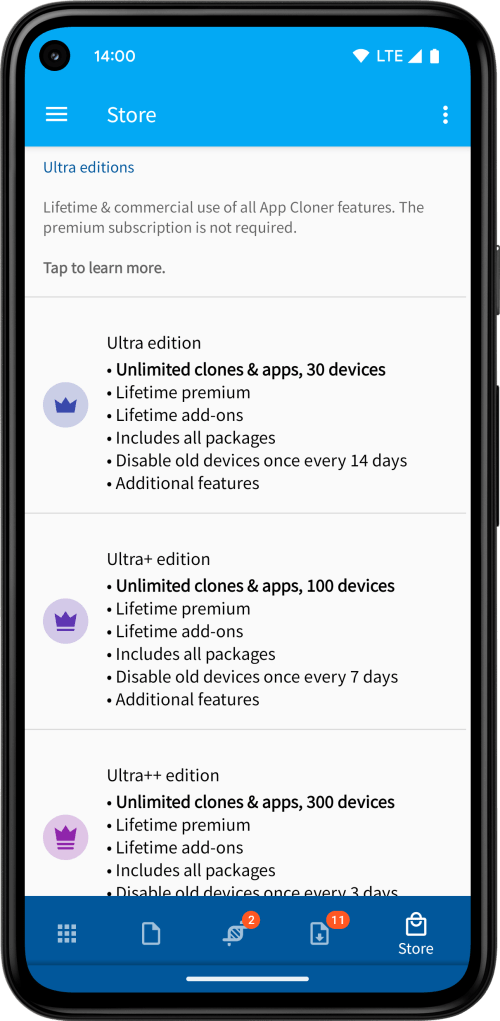
Ultra edition
• Unlimited clones & apps, 30 devices
• Lifetime premium
• Lifetime add-ons
• Includes all packages
• Disable old devices once every 14 days
• Additional features
• Commercial use (*)
Ultra+ edition
• Unlimited clones & apps, 100 devices
• Lifetime premium
• Lifetime add-ons
• Includes all packages
• Disable old devices once every 7 days
• Additional features
• Commercial use (*)
Ultra++ edition (new)
• Unlimited clones & apps, 300 devices
• Lifetime premium
• Lifetime add-ons
• Includes all packages
• Disable old devices once every 3 days
• Extended session duration (90 days rather than 30)
• Additional features
• Commercial use (*)
(*) Please refer to the App Cloner Terms of Use.
Registered devices
Clones may be used on registered and active devices. Please ensure that App Cloner is installed (and that you are also logged in) on the devices where your clones are being used.
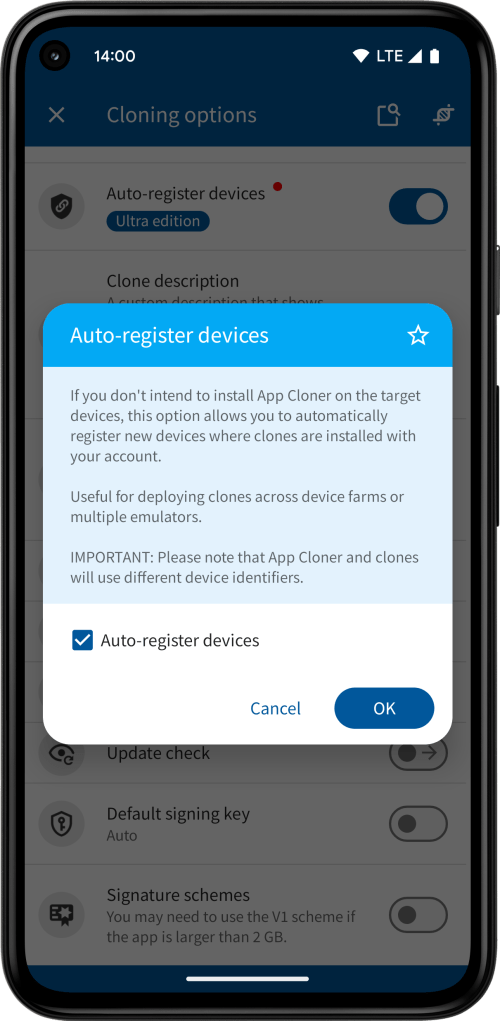
Alternatively, if you have the Ultra edition, you may enable the Auto-register devices cloning option, which automatically registers new devices where clones are installed on with your account. This is useful for deploying clones across device farms or multiple emulators without installing App Cloner itself. IMPORTANT: Please note that devices added by clones use different device identifiers. Therefore, when enabling this option, it’s best to avoid installing App Cloner on the target device (otherwise the device may be counted twice).

Other changes
The App Cloner 3.0 premium subscription allows creating up to 10 clones of 100 apps by default (*). To increase these limits you may obtain one or more packages / editions.
(*) This change does not affect existing users with purchases.
Some options have been relocated or rearranged. Options related to location spoofing, mock locations, and faking or freezing time have been relocated to the new Mock options group.
The Show system apps menu item has been moved to the Settings screen, and the setting is now persistent. App Cloner 3.0 introduces a setting to hide dots / badges shown for new & updated options.


App Cloner 3.0 also offers a new settings to set the default start tab: Apps, APKs, Cloned apps or Cloned APKs.
App Cloner 3.0 shows a Launch button for recently installed clones.
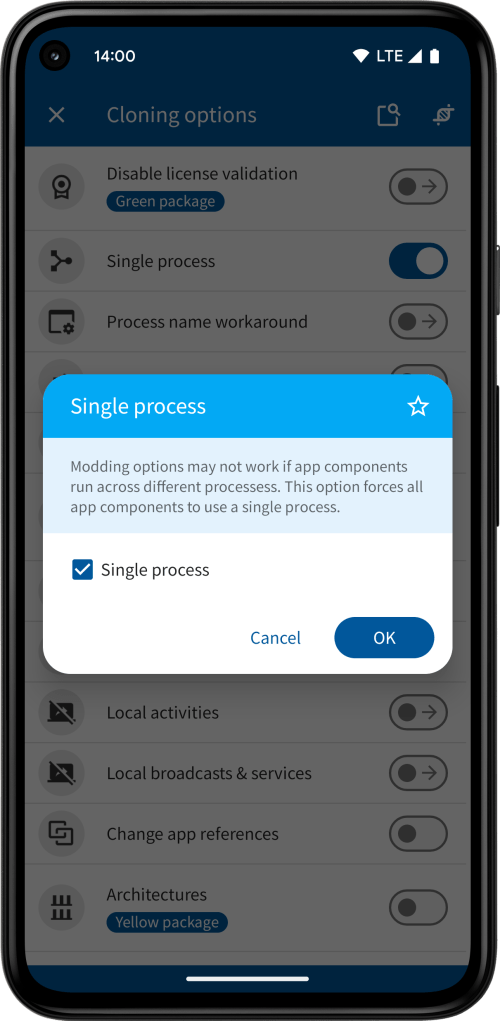

App Cloner 3.0 updates the test app (Device Info: System & CPU Info), which allows free version users to try out premium options.
As before, you can open the App info dialog by tapping the app’s version number. Additionally, it can now also be accessed through the app screen’s pop-up menu.


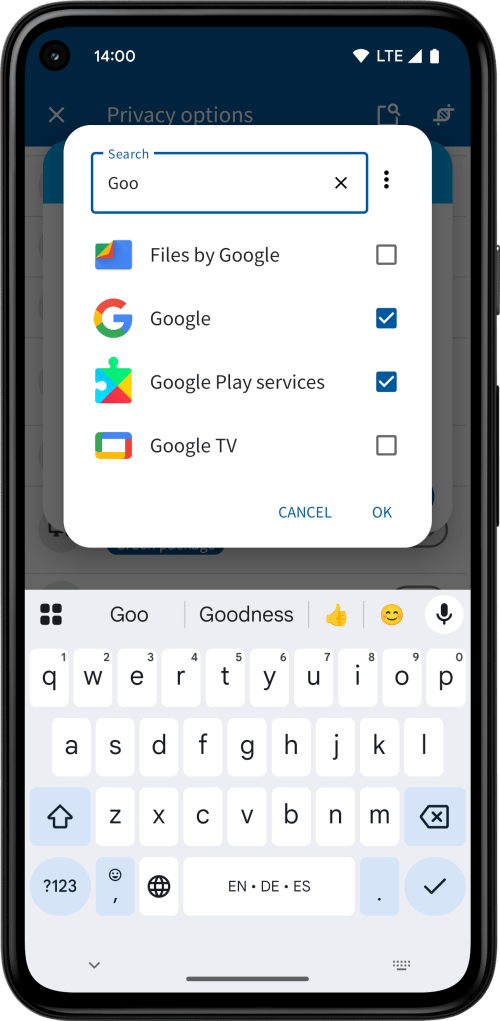
The app picker dialog in App Cloner 3.0 now includes a filter to help you quickly find apps.

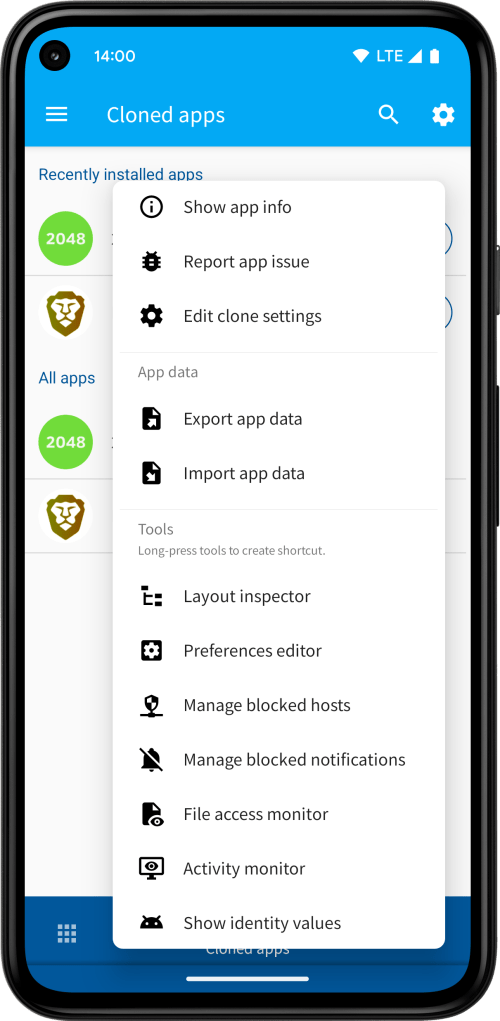
App Cloner 3.0 lets you create direct access shortcuts to tool functions, such as Layout inspector and Preferences editor. To add a shortcut, simply long-press the tool’s menu item. Each shortcut is linked to its respective cloned app.

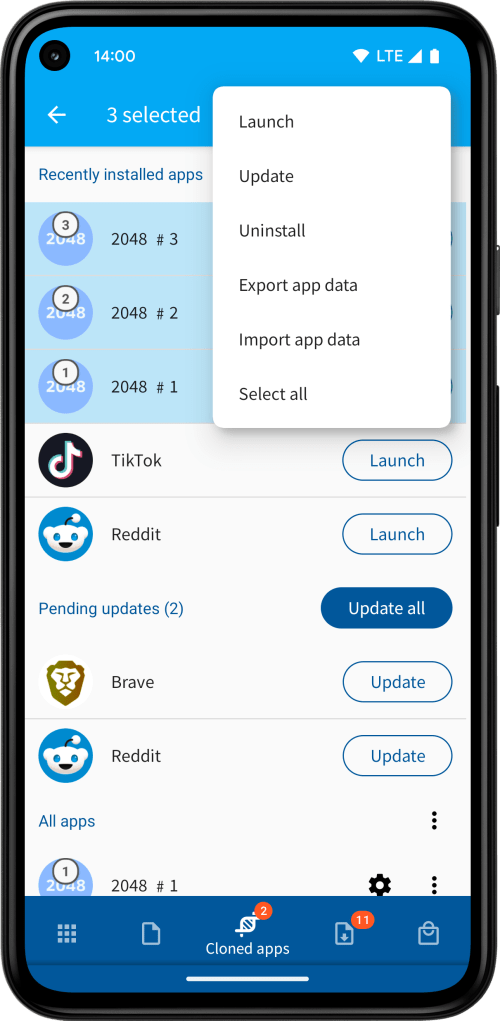
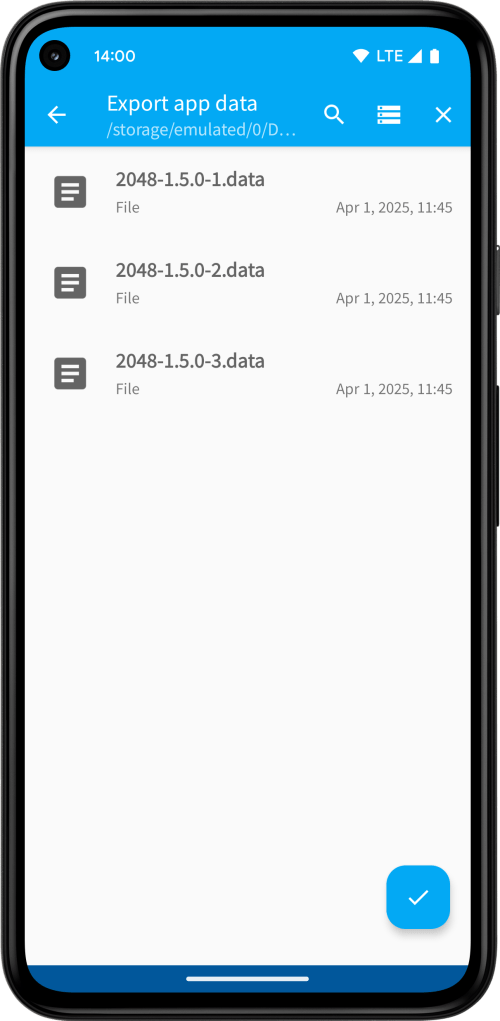
App Cloner 3.0 supports batch export / import of app data. Simply select multiple cloned apps and choose Export app data or Import app data from the context menu. You can then choose a directory where the data files will be saved to or loaded from. File names are generated automatically based on the default save name and always include the clone number.
App Clone 3.0 also offers an ADB-based API for exporting / importing app data. You can read about it here.
App Cloner 3.0 introduces a new installation method that automates app installations using wireless debugging. You can read more about it here.
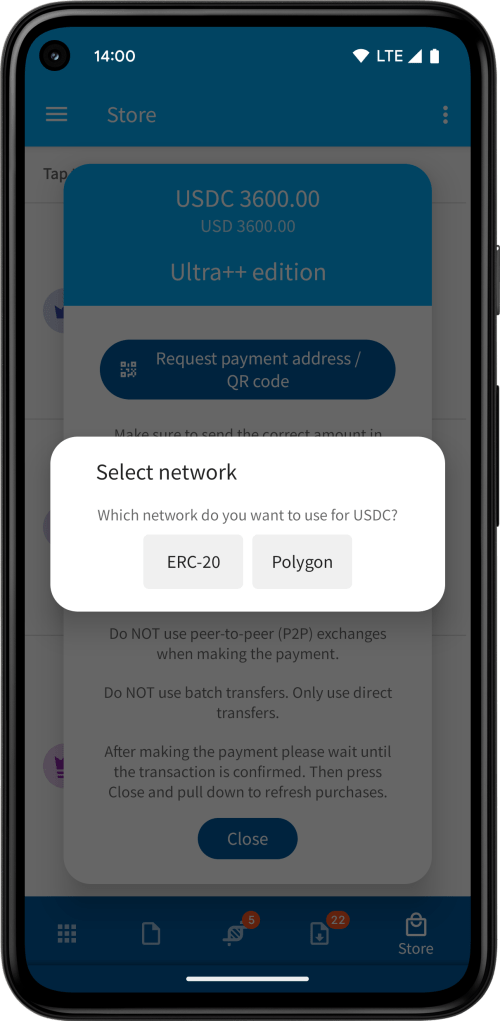
App Cloner 3.0 adds USDC as new payment method. Supported networks are ERC-20 (Ethereum) and Polygon.

Changes related to options
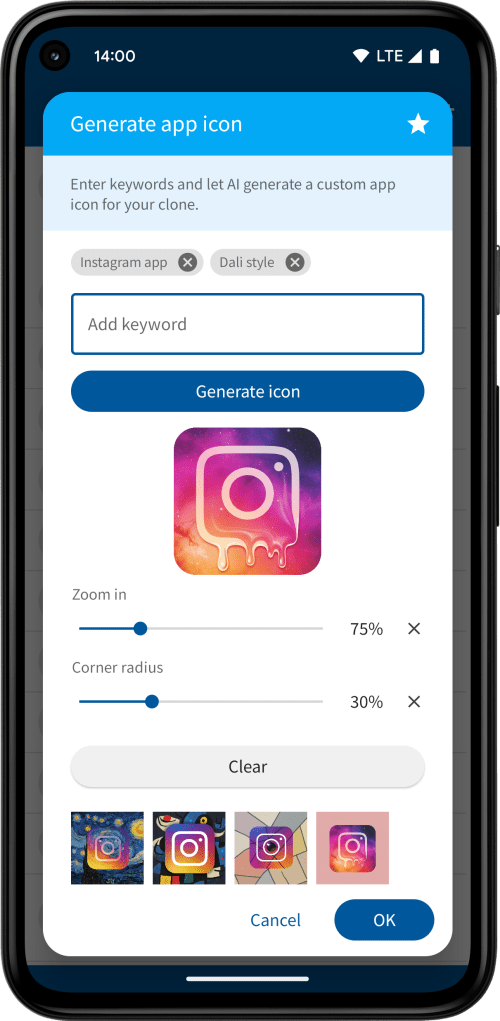
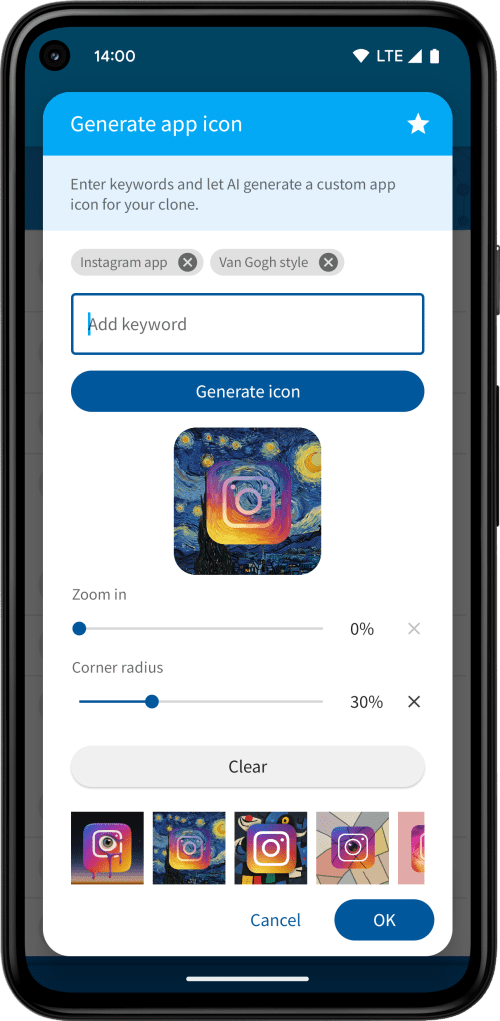
App Cloner 3.0 introduces the Generate app icon option, letting you create your own custom app icons using AI.
App Cloner 3.0 introduces a new anti-tracking feature called Randomize MediaStore version. You can read about it here.
App Cloner 3.0 introduces the Custom values option, which allows you to define arbitrary custom values that can be used with placeholders.
App Cloner 3.0 adds a new developer option Frida script, which allows embedding custom Frida scripts using Frida Gadget. This feature is tied to Ultra++ as it enables the inclusion of any type of modification within a cloned app.
The Single process cloning option is now available in the free version, allowing for better testing of app cloning, as this option is sometimes necessary.
App Cloner 3.0 introduces the developer option Custom build props file, which works similarly to Custom build props but lets you load and edit a full build.prop file and offers support for placeholders.
The Developer options App valid from / App valid until are no longer available.
Cloning unsigned apps requires the Ultra edition.
 App Cloner
You must be logged in to post a comment.