
The App translator option is included in the Manifest & resource options group and becomes available with the Manifest & resource options add-on.
Many apps only support a few languages. With App translator, you can edit and translate the resource strings inside an app to create your own localized version.
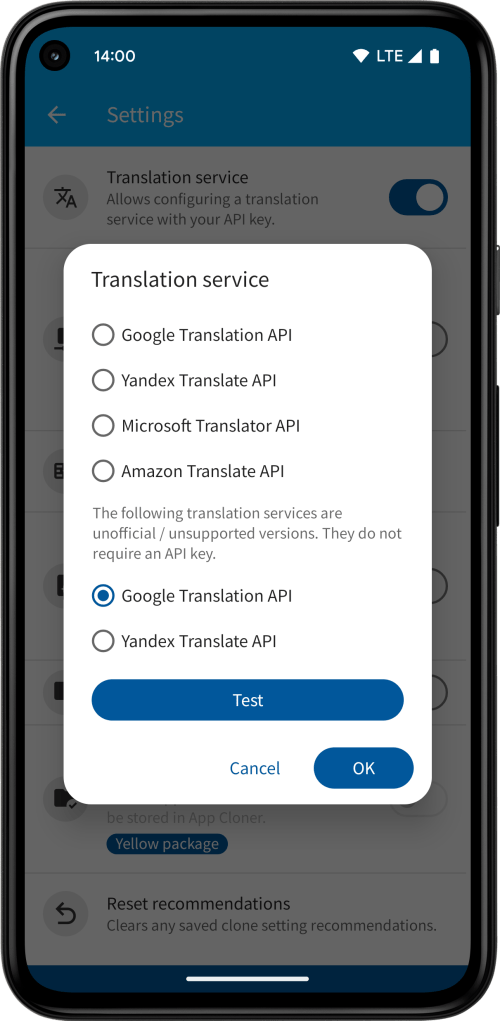
App Cloner supports several online translation services, which you can configure using your own API key in the App Cloner Settings screen:
- Google Translation API
- Yandex Translate API
- Microsoft Translator API
- Amazon Translate API
Microsoft Translator API and Amazon Translate API are available for users with the Green package.
For the Microsoft Translator API, use the key format <Key>:<Region>, where <Key> is either Key 1 or Key 2 and <Region> is Location/Region from the Keys and Endpoint page.
For the Amazon Translate API, use the key format <AWS Access Key ID>:<AWS Secret Access Key>.
App Cloner also supports unofficial access to Google and Yandex translation APIs without an API key, though these may not always work reliably or may be rate-limited.
The resource strings are presented in a sorted list view. Each resource string consists of a unique key and a value. For arrays, the array index is appended to the key. For plurals, the plural identifier, e.g. zero, one, two, few, many, or other is appended.
Untranslated strings are marked in red with Needs translation. Completed translations appear in green. If a string has already been translated but the original text changed (e.g. after an app update), it’s marked in orange with Needs updated translation.

Some resource strings may contain internal identifiers or constants that shouldn’t be translated or altered. You can long-press these strings to exclude them from the list.
Use the filter button in the toolbar to view All strings, Translated strings (including those needing updates), Strings needing translation (also includes outdated ones) or Excluded strings. To re-include an excluded string, long-press it again.
Use the Search menu item to find or filter strings by key.
If you have the Green package, you can use Load file and Save file to import or export translations. These options work with a CSV file that must have a header row with the columns: key, original and translated. This makes it easy to edit strings in tools like Excel.
The Reset option clears all translations and turns off the App translator.
Tap any string to edit or translate it.
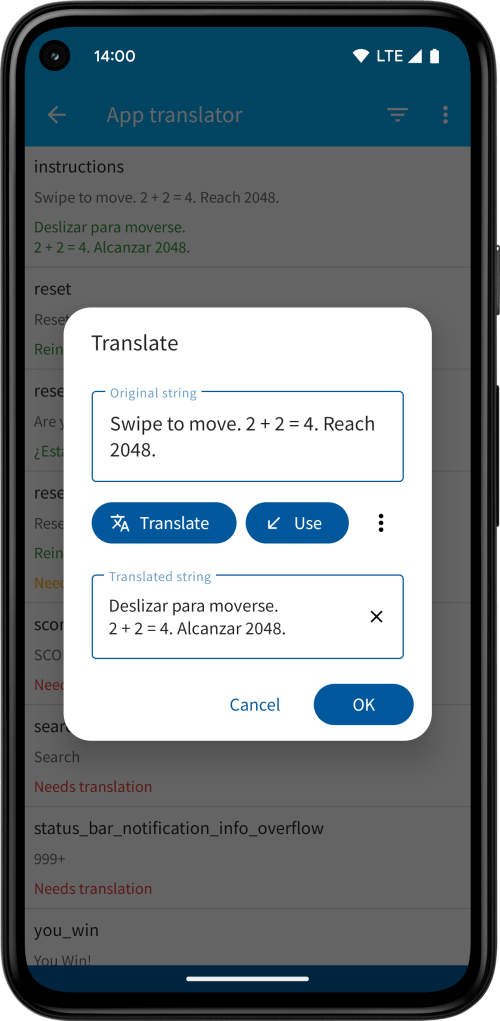

Tap Translate to use the configured App Cloner translation service to translate the string automatically. Keep in mind that automatic translations may need to be adjusted manually.
Tap Use to copy the original string into the translation field. This is handy for strings that don’t require translation or need only small edits.
Tap the menu button to:
- Share the original string with other apps, e.g. send it to Google Translate
- Copy the original string to the clipboard
- Paste the clipboard contents into the translated string field
When translating, make sure to preserve any placeholders. For example, %s is a placeholder to substitute another string while %d is a placeholder to substitute a number.
There are also positional placeholders such as %1$s for a string substitution of the parameter at index 1 or %2$d for a number substitution of the parameter at index 2.
Positional placeholders can be placed anywhere inside the translated string as long as they do occur at least once (they may also be used multiple times in different places). Non-positional placeholders must be kept in their original order, which means you may not swap %s with %d. App Cloner will validate all translated strings in this regard.
When you clone an app with the App translator option enabled, all other languages are disabled. This ensures your translated version is always used regardless of the system language.
 App Cloner
You must be logged in to post a comment.