
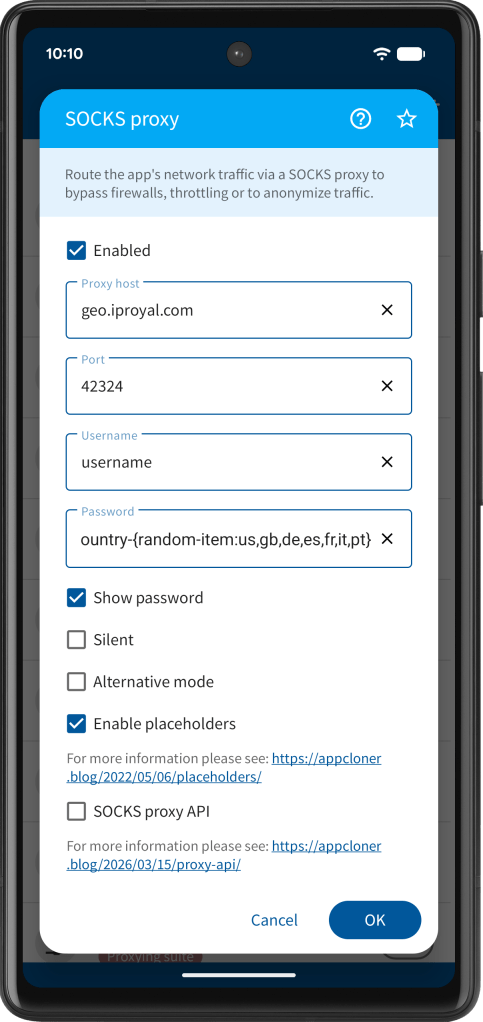
The SOCKS proxy option allows routing the app’s network traffic via a SOCKS5 compatible proxy server. This can be used to bypass firewalls, prevent traffic throttling or to anonymize network traffic.
Using a SOCKS proxy also helps to prevent an app from finding your approximate location from your IP address as your real IP address will be hidden. Unlike HTTP proxies, which often include the original IP address inside the HTTP header, SOCKS proxies operate at a lower networking layer and do not send your IP address to the target server, nor will the target server know that a request has been proxied.
However, some proxy providers, especially those using data-center proxies, have well known IP ranges, which may be recognized as belonging to a proxy server. If you suspect the cloned app might be detecting proxies, please try using residential or mobile data / 4G proxies. To see more information about your IP address, please visit https://ipinfo.io/.
You can find many free SOCKS proxies on the internet but these are often very slow and unreliable. Generally it’s best to use paid proxy service that offers residential or mobile data proxies.
You can use the Test button to test the proxy connection before cloning the app. It’s better to use a private, premium, password-protected proxy server. Do not use HTTP or SOCKS4 proxies. The socks5h:// and Shadowsocks protocols are not supported.
You can also test if your proxy is working by visiting https://proxyway.com/tools/free-online-proxy-checker. Make sure to select the SOCKS5 protocol. Further, you can test your proxy with the following curl command:
curl -x socks5://username:password@host:port ipinfo.io
IMPORTANT: The SOCKS proxy option doesn’t work with native network connections as used by most web browsers, Flutter-based apps, WebViews and audio / video streaming apps. For these scenarios please use the WebView proxy option or the App Cloner SOCKS VPN service instead.
If you want to change the proxy server without recloning the app, you should considering using the Runtime modding options add-on.
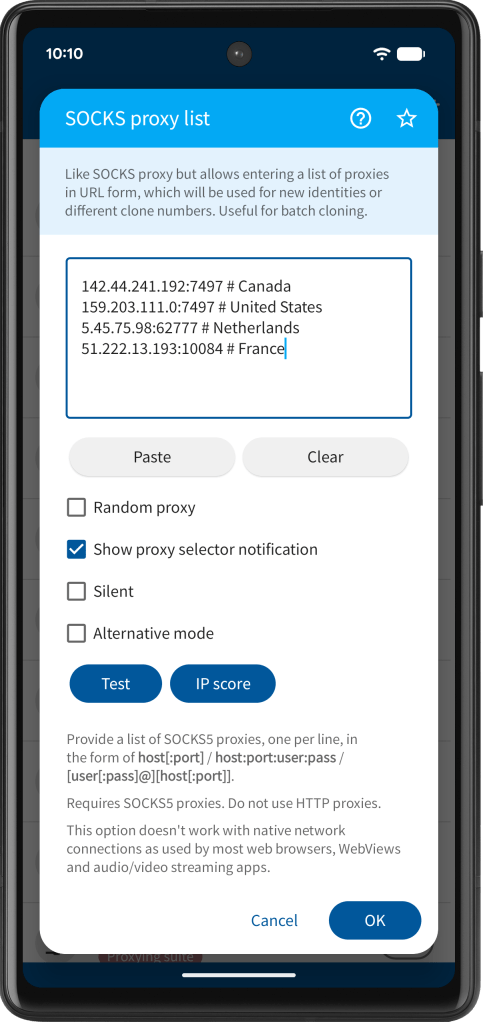
Alternatively, you can use the SOCKS proxy list option, where you can specify multiple SOCKS5 proxies as text lines. This is useful for 1) batch cloning, where each clone number uses its own proxy, and 2) the New identity option, which uses a new proxy each time you generate a new identity.
Selecting Random proxy will choose a random proxy initially and whenever a new identity is generated, instead of using the first or next proxy in the list.
You can define proxies as host (the default port is 1080), host:port, host:port:user:pass or user:pass@host:port. Lines may include comments prefixed by #.
Both modes operate in a cyclic manner; if the end of the proxy list has been reached, the next proxy used will be the first one.
The SOCKS proxy list option allows selecting a proxy from the proxy list in the cloned app at runtime by checking Show proxy selector notification. It’s not necessary to restart the clone but the new proxy will only be used once the app establishes a new socket connection.
You can use the # character to add a comment after the proxy definition and give each proxy a meaningful name, which is then shown in place of host:port in the SOCKS proxy selector dialog.
In this mode, batch cloning will not select an individual proxy for each clone. Instead, each clone is configured with the complete proxy list. The first proxy is selected by default, the selected proxy is remembered also if the cloned app is restarted. It also disables the automatic proxy selection of the New identity option.
The SOCKS proxy option also offers placeholder support, allowing the host, username and / or password to be loaded at runtime from a text file or randomly selected from a list of items. For details please see https://twitter.com/AppCloner/status/1507383724043911170 and https://twitter.com/AppCloner/status/1595192799443435525.
If you use placeholders the Test button may not work correctly, since placeholders are only substituted at runtime inside the cloned app.
If you enable the silent mode the cloned app will not show a pop-up message indicating which proxy is being used.
App Cloner also provides an ADB-based API for configuring SOCKS proxies. Please see Proxy API.
 App Cloner
You must be logged in to post a comment.