
App Cloner 3.4 introduces the new App Cloner WebView, a custom Android System WebView component that can be installed without root access and lets cloned apps load their in-app WebView content through a dedicated App Cloner WebView.
App Cloner WebView is built on the standard Chromium 138 LTS (Long Term Support) channel but adds several important enhancements:
X-Requested-With header
The stock Android WebView always includes the host app’s identifier / package name in the X-Requested-With HTTP header. For clones this will be the cloned package name, making it easy for servers to detect clones and block access or ban accounts. With the App Cloner WebView, the WebView instead sends the original app’s identifier/package name. For clones that use the App Cloner WebView, this happens automatically for all HTTP request types, so no additional option needs to be enabled.
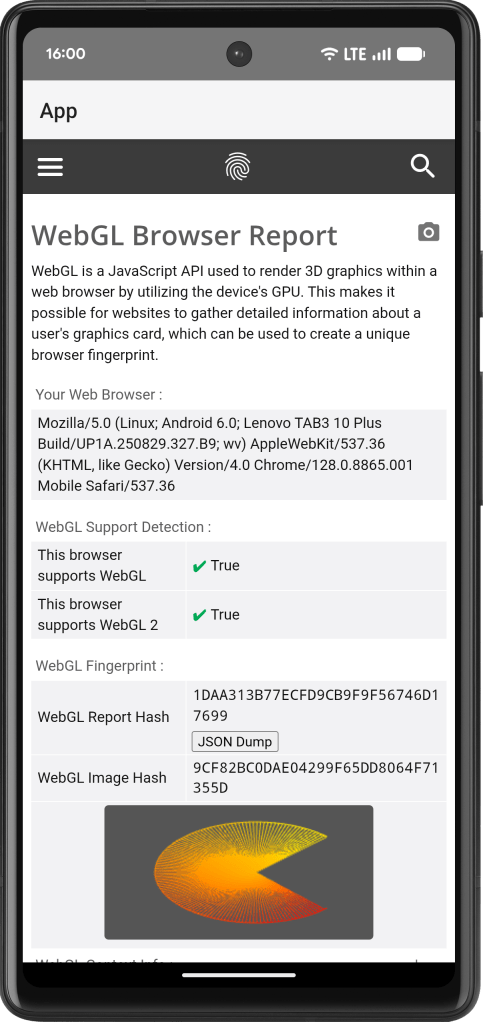
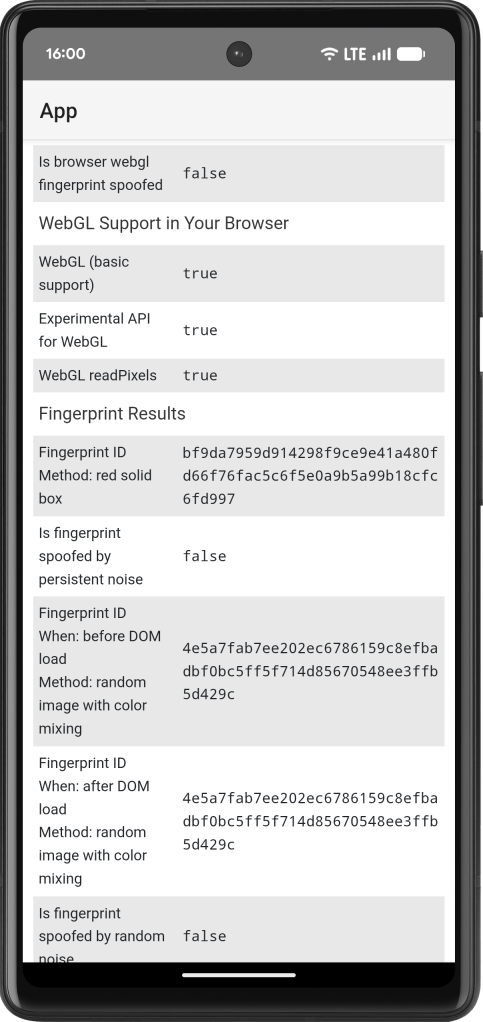
WebGL fingerprint
The App Cloner WebView natively supports full WebGL fingerprint spoofing while bypassing anti-spoof checks. It’s tied into the New identity option, so every time you generate a new identity, the WebGL fingerprint changes as well.
AudioContext fingerprint
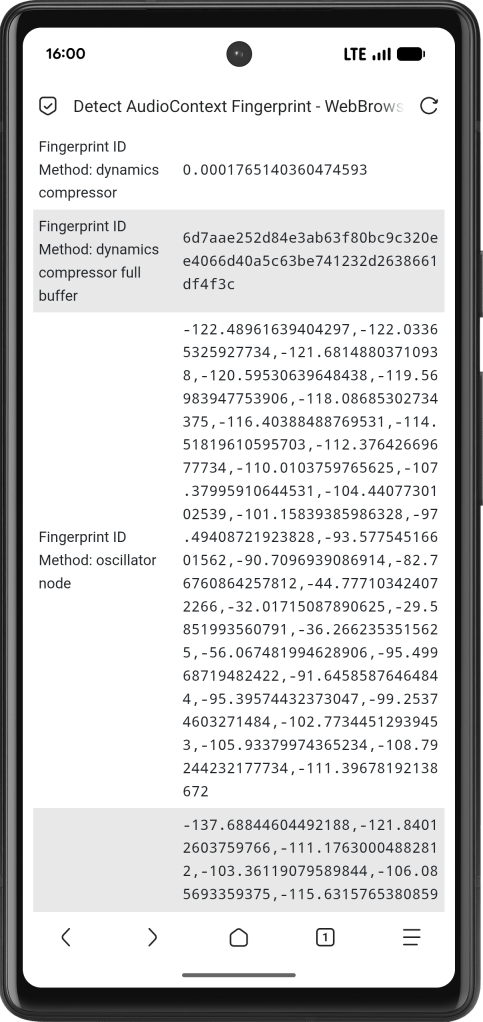
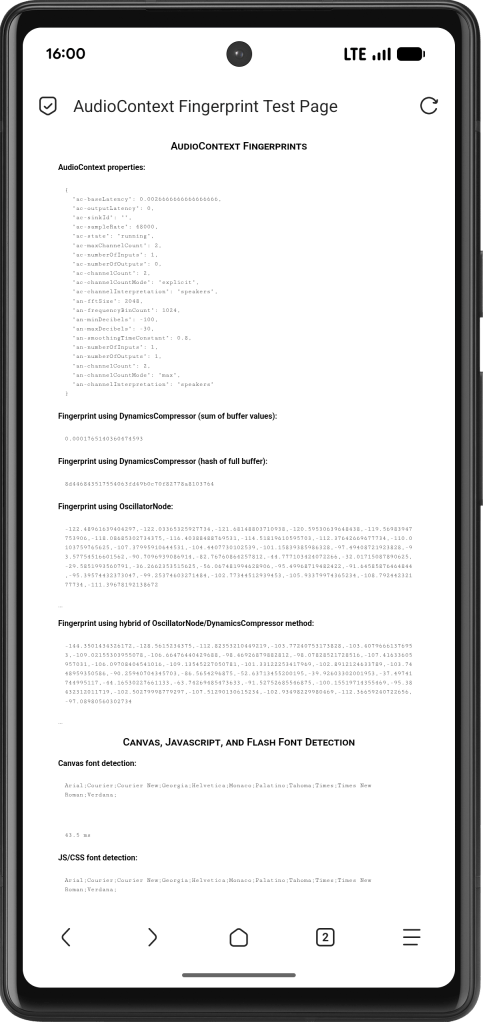
Starting with build 138.0.7204.302, App Cloner WebView also includes full AudioContext anti-fingerprinting support, helping block tracking techniques that use tiny differences in your device’s audio processing as a unique identifier. This supports both, audio buffer and oscillator fingerprinting methods.
HTTP / SOCKS proxy
App Cloner 3.4 introduces a new WebView proxy option that works with the App Cloner WebView to route all WebView requests through an HTTP or a SOCKS proxy.
Installation
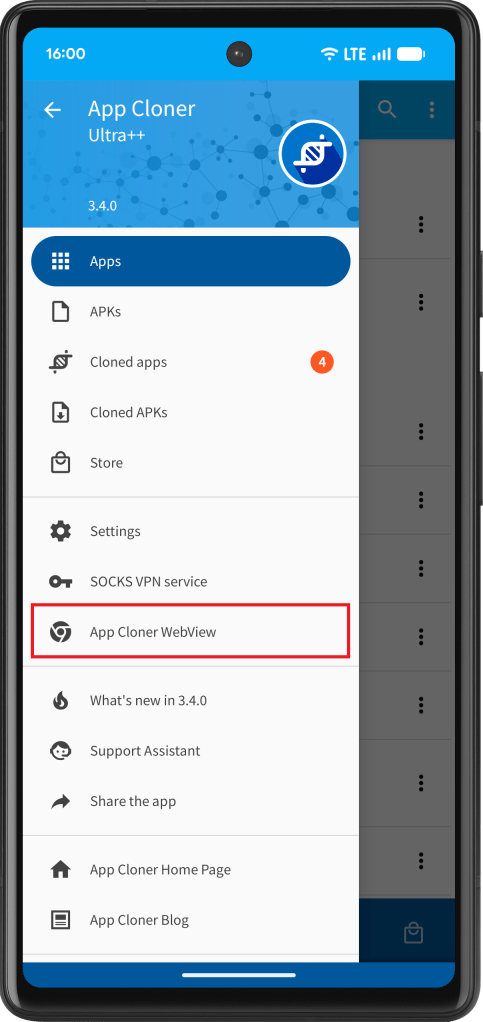
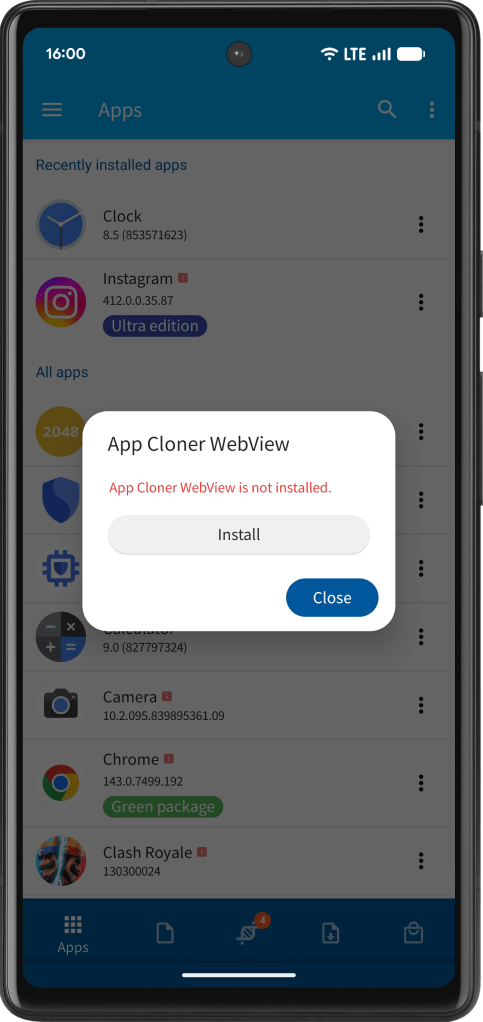
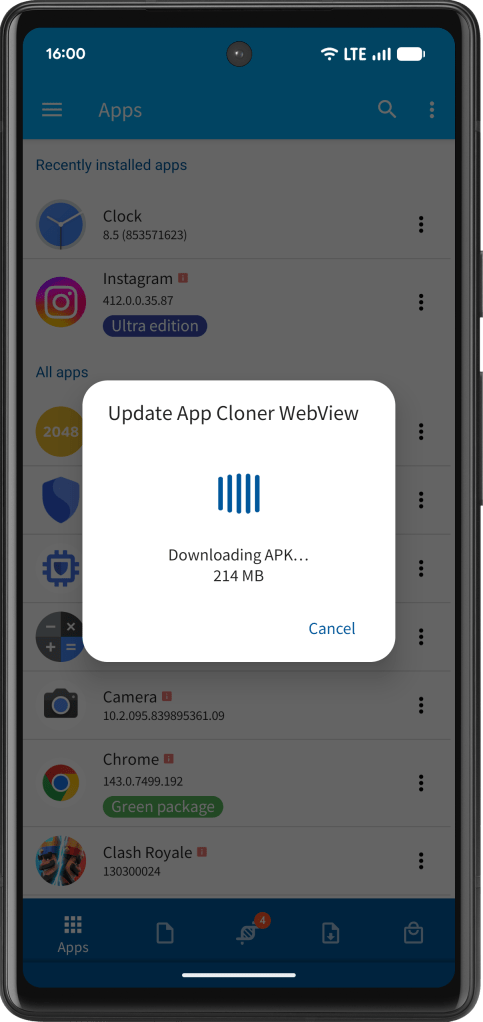
To install App Cloner WebView, open the side navigation or main menu and select App Cloner WebView. The download is around 270 MB on ARM devices and 350 MB on x86. App Cloner will automatically fetch and install the correct version for your device architecture.
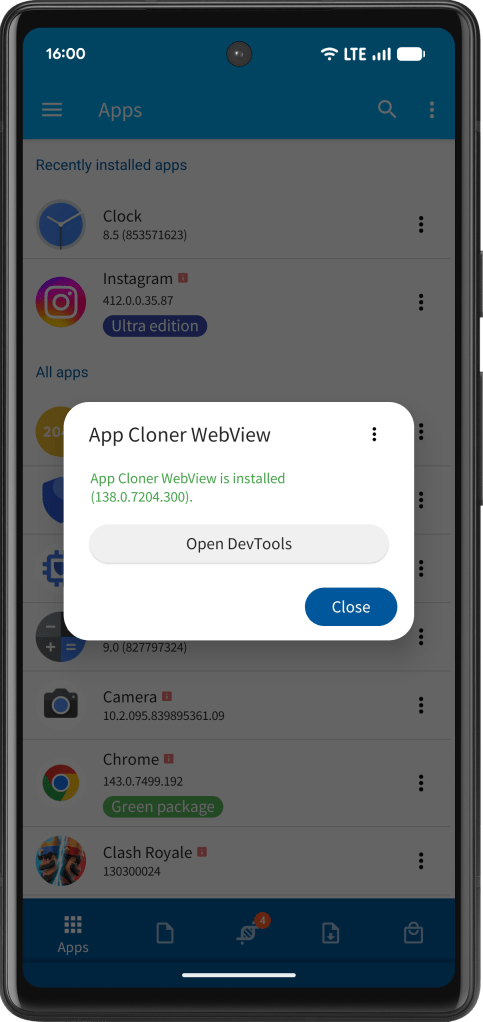
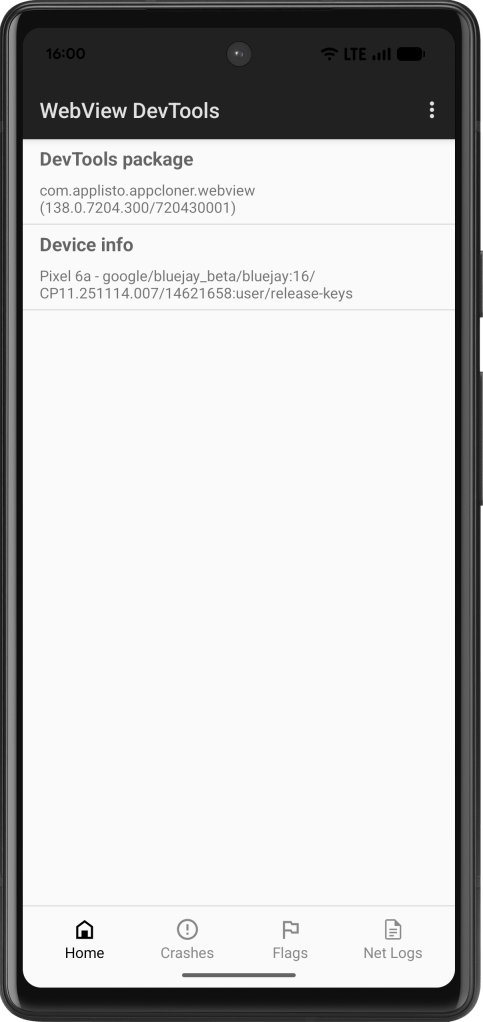
Once installed, the current version will be shown. You can also open the WebView DevTools interface to access extra debugging information, network logs and optionally enable experimental WebView flags.
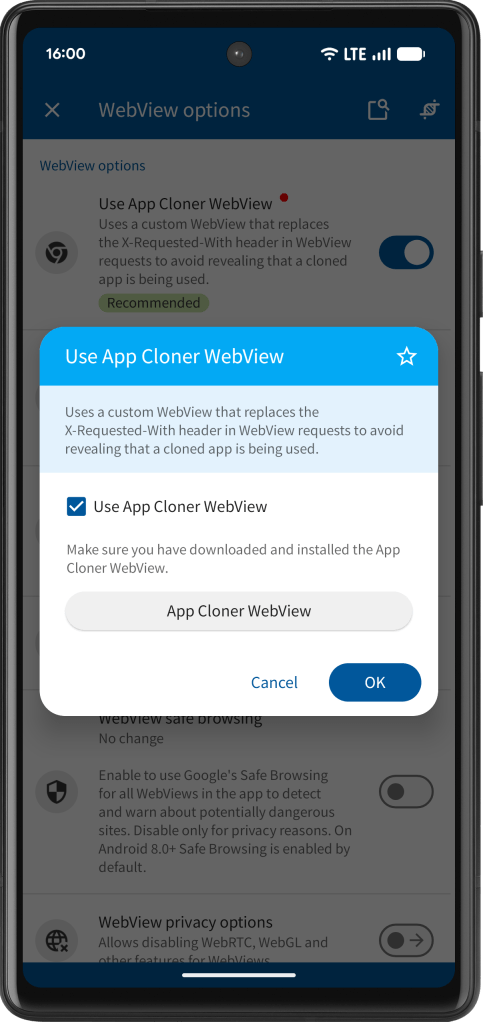
To have clones use the App Cloner WebView, enable the Use App Cloner WebView option. Changing this option requires recloning your apps. Clones created with this option will check whether the App Cloner WebView is installed and, if not, show a notification prompting you to download and install the latest WebView APK available at cloning time.
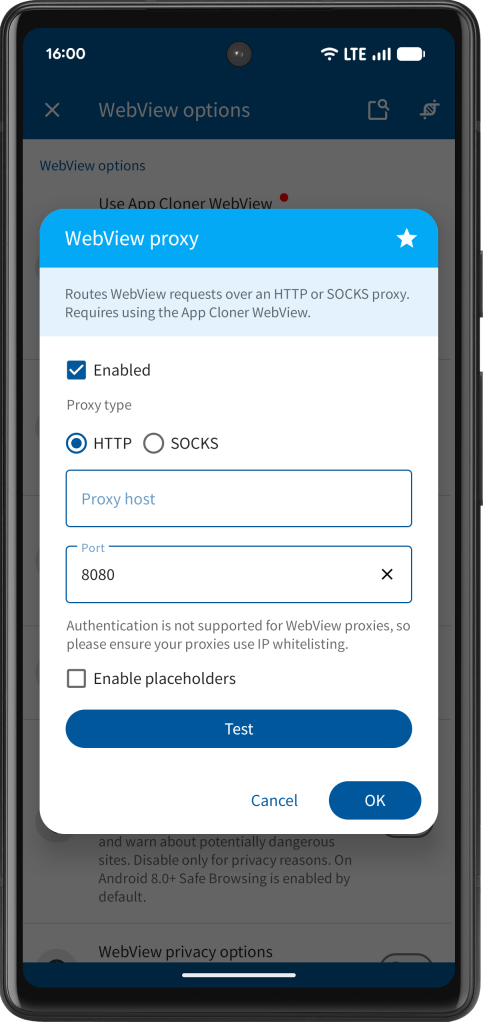
To enable WebView HTTP / SOCKS proxies, turn on the WebView proxy option. SOCKS proxies must use the SOCKS5 standard. Proxy authentication is not supported, so your proxy must rely on IP whitelisting.
You can also enable placeholders for the port number, allowing each clone to use its own port. For details please see Placeholders.

 App Cloner
You must be logged in to post a comment.