
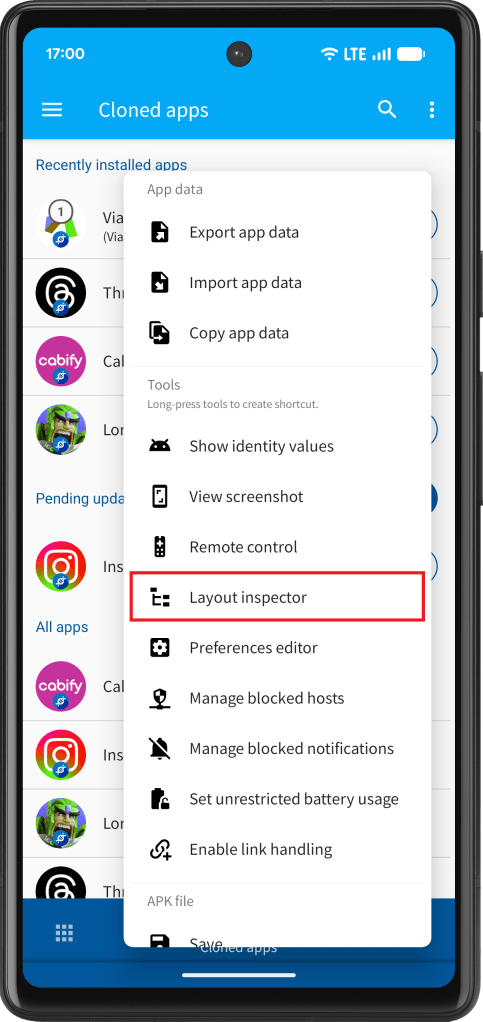
The App Cloner Layout inspector is a tool that allows visualizing the view hierarchy of cloned apps. You can access it from the pop-up menu under the Cloned apps tab.
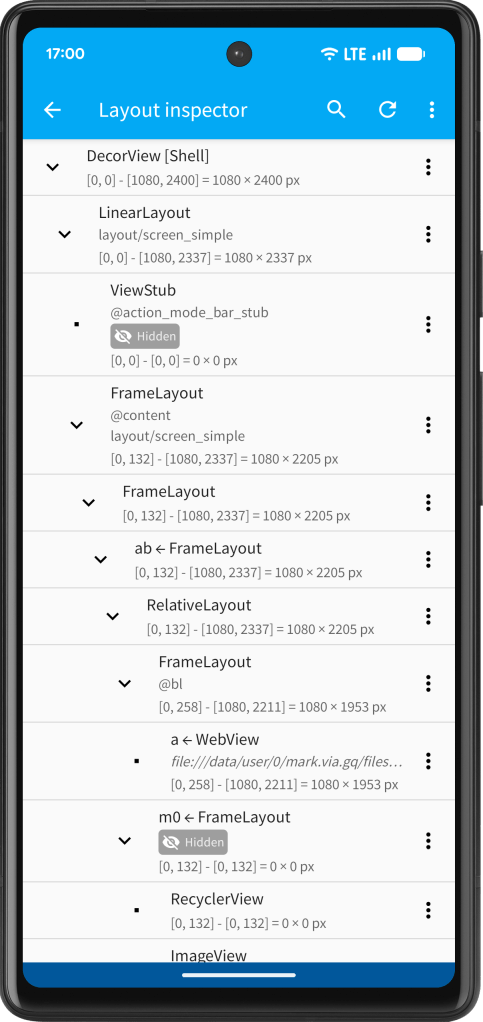
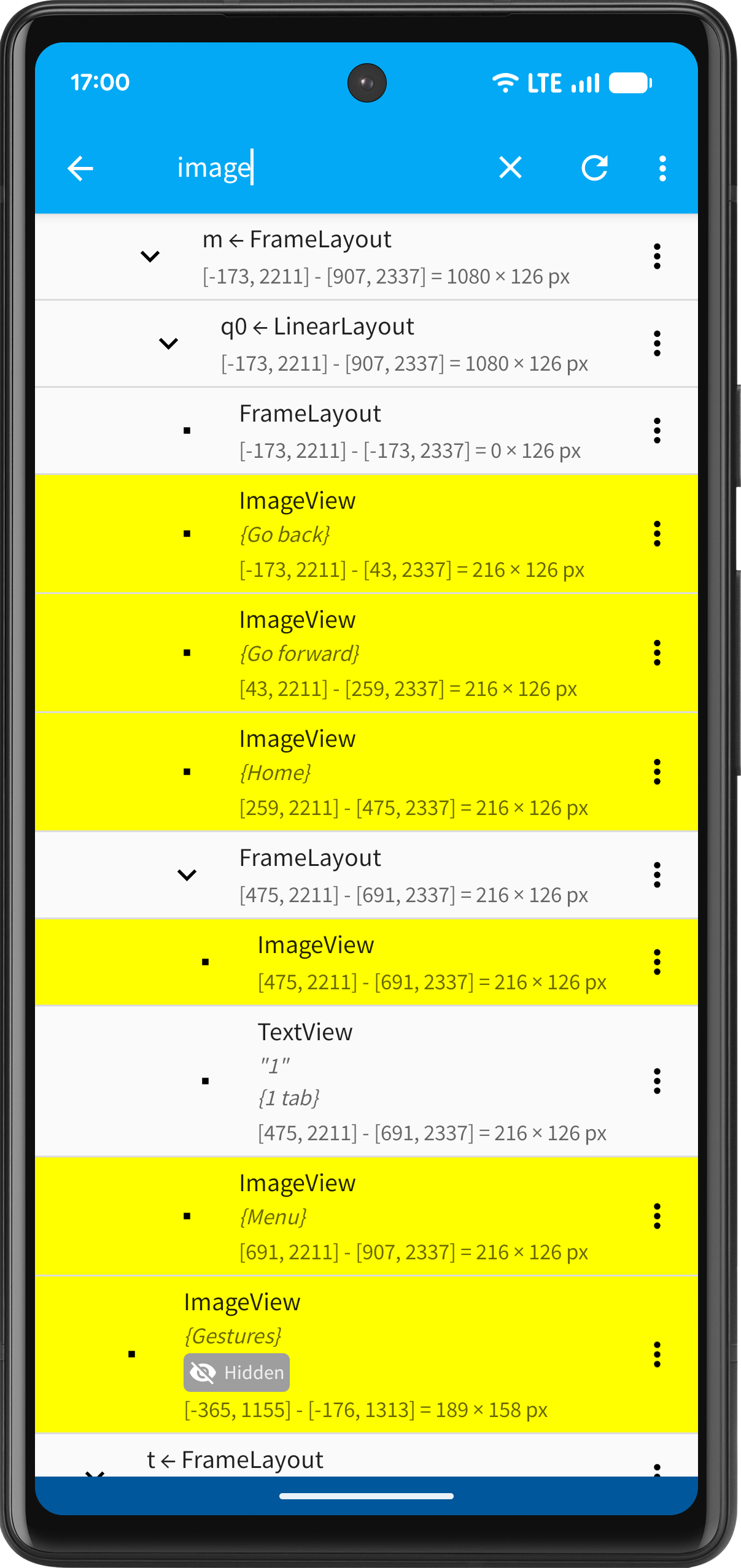
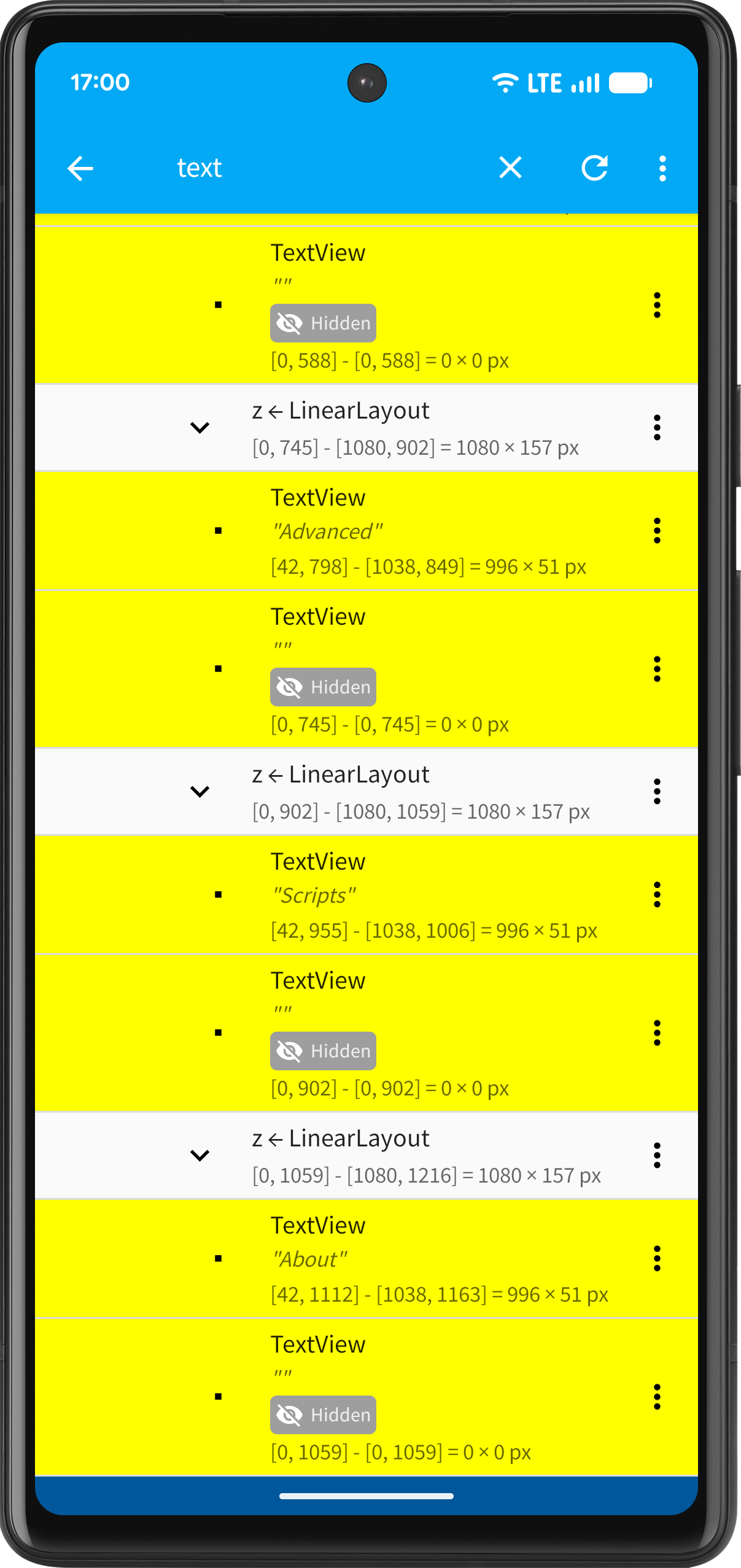
Views are displayed in a hierarchical tree. Tap a node to expand or collapse view groups, which are parent views containing child views. Each node shows the view’s class name, such as LinearLayout, TextView or Button. If the view has an identifier, it appears after the @ symbol. If it contains text, such as in a TextView, EditText or text button, that text is shown in quotes. Content descriptions, which provide hint text about a view, are shown in curly brackets. Hidden or disabled views are marked with Hidden or Disabled tags.
By default, the Layout inspector shows the standard Android view hierarchy. This is useful for traditional UI components built with the Android view framework. Modern apps, however, may use Compose-based rendering, which has its own rendering pipeline.
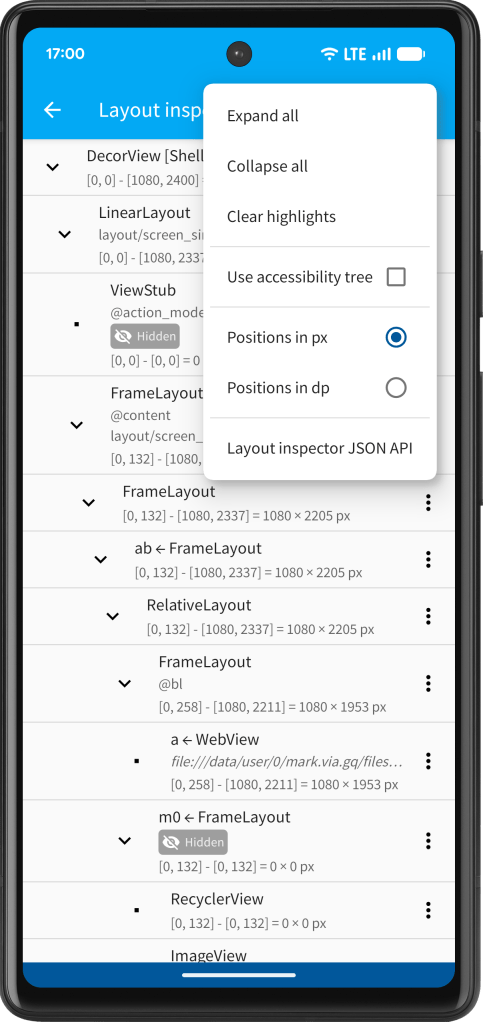
In that case, you may need to enable Use accessibility tree from the menu. This switches tree traversal to accessibility nodes, which are typically compatible with Compose-based UIs. The Layout inspector will notify you if it detects a Compose view while accessibility tree mode is not enabled.
When Use accessibility tree is enabled, only the Click and Focus actions are available (see below).
The Layout inspector also shows each view’s position on the screen. The format is [left, top] – [right, bottom] = width x height. Use the toolbar menu to switch between px (pixels) and dp (density-independent pixels, a unit based on screen density).
A DecorView is the top-level container of a view hierarchy. If an app displays multiple windows or dialogs, the tree will contain multiple top-level DecorView nodes. If the tree is completely empty, the app is not currently showing any activities or windows, so you may need to launch the clone first.
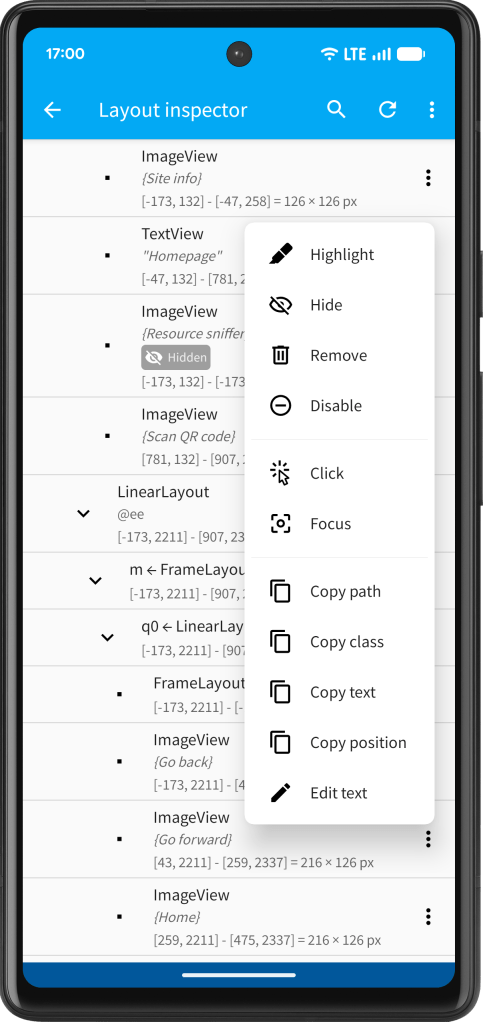
The pop-up menu for each node lets you perform the following actions:
- Highlight
Highlights the view in yellow so it can be easily located in the cloned app. - Show
Makes the view visible. Available only for hidden views. - Hide
Hides the view. Available only for visible views. Requires the Yellow package. - Enable
Enables the view. Available only for disabled views. - Disable
Disables the view. Available only for enabled views. - Check
Selects check-boxes, toggles or radio buttons. Available only for unchecked checkable views. - Uncheck
Clears check-boxes, toggles or radio buttons. Available only for checked checkable views. - Click
Sends a click event to the view, similar to a tap. (When using accessibility tree mode, this action is still available.) - Focus
Requests focus for the view. (When using accessibility tree mode, this action is still available.) - Copy class
Copies the view class name to the clipboard. Useful for the Modify views option. - Copy identifier
Copies the view identifier to the clipboard. Useful for the Modify views option. - Copy text
Copies the view text to the clipboard. Available only for text views. - Copy position
Copies the view position to the clipboard, including the selected unit (px or dp). Useful for the Modify views option. - Edit text
Lets you edit the current text of the view. Available only for text views.
Please note that changes made to views may be temporary and can be quickly overwritten or reset by the cloned app. This is especially common for views inside scrolling lists, which may be replaced as soon as you scroll or when the app refreshes its data. If you see the message “Action was not performed”, the view hierarchy may no longer be current. In that case, tap Refresh in the toolbar to reload the view tree.
You can use the Search button to enter a query. This will expand the tree and highlight any views whose class, identifier or text contains the search term.
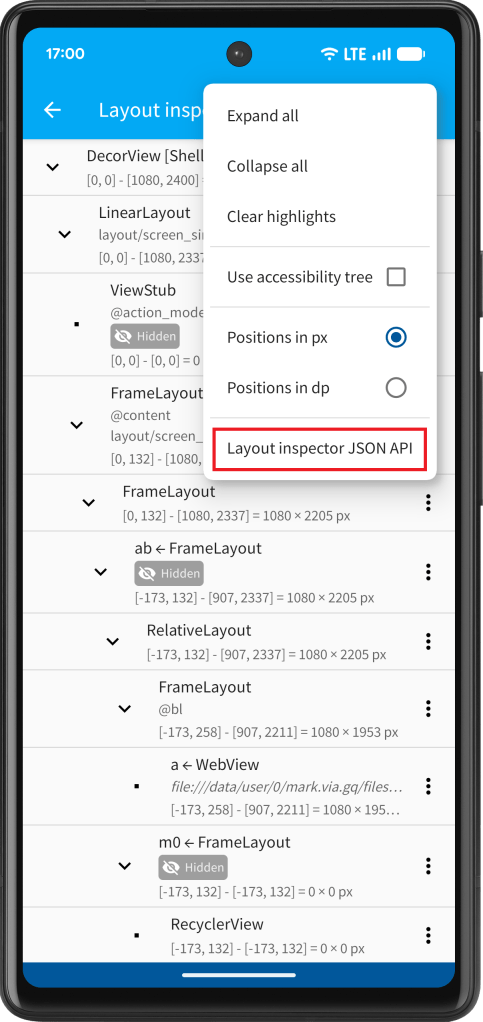
The toolbar menu also lets you expand or collapse all tree nodes and clear any highlight actions.
If the tree contains deeply indented nodes, you can also scroll horizontally.
Layout inspector API
The Layout inspector API is available to Ultra edition users.
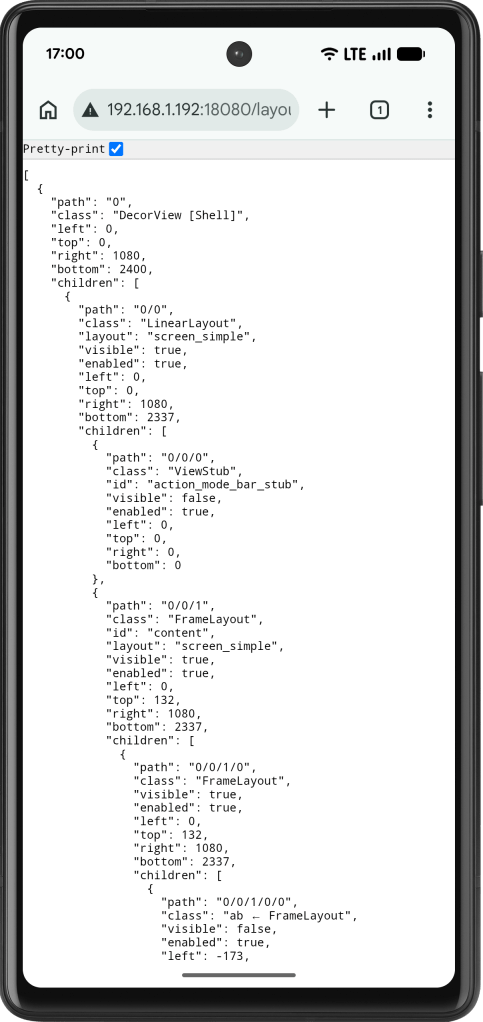
Select Layout inspector JSON API to open a web page that returns the current view hierarchy as a JSON document. This requires App Cloner to be running. The built-in App Cloner HTTP server is started automatically. The URL is also copied to the clipboard.
You can integrate this URL into your own workflows or agents and refresh it with repeated HTTP GET requests as needed to detect specific elements in the cloned app’s user interface. The JSON document contains the same information shown in the Layout inspector.
The path property is especially important when using the Layout inspector API option to perform actions in the cloned app, as it uniquely identifies a view within the hierarchy. For example, “0” refers to the first root view, “1” to the second root view, “0/1” to the second child of the first root view, and “1/0” to the first child of the second root view, etc.
The URL’s useAccessibilityTree parameter determines whether the API uses the standard Android view traversal or the alternative accessibility node traversal. Its value is preset based on the current operating mode.
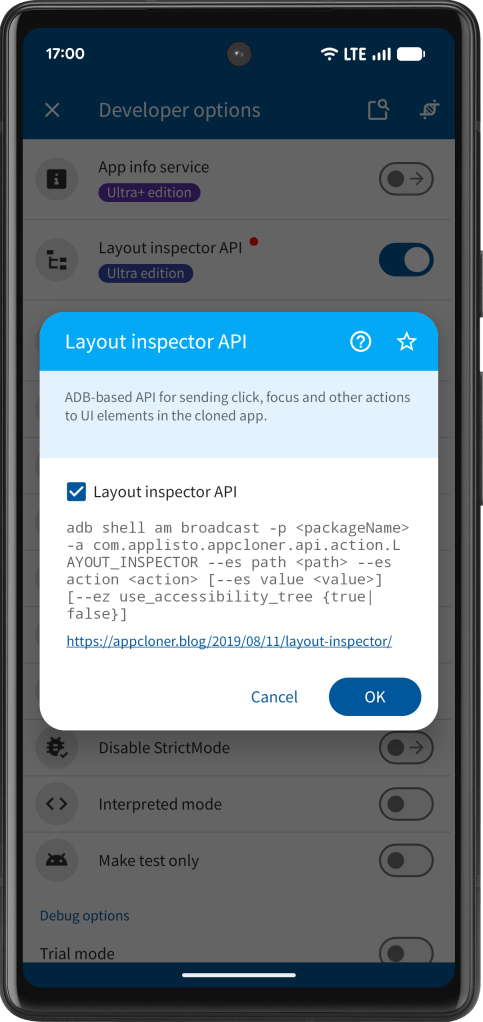
Enable the developer option Layout inspector API to create a clone that accepts ADB-based broadcast events to perform Layout inspector actions. You can use the API via the following ADB command:
adb shell am broadcast -p <packageName> -a com.applisto.appcloner.api.action.LAYOUT_INSPECTOR --es path <path> --es action <action> [--es value <value>] [--ez use_accessibility_tree {true|false}]
The -p parameter specifies the package name of the cloned app, which you can see when opening the app info dialog of the cloned app under Cloned apps.
The –es path parameter specifies the path of the target view as found in the Layout inspector JSON API.
The –es action parameter specifies the action:
- HIGHLIGHT
- UN_HIGHLIGHT
- SHOW
- HIDE
- REMOVE
- ENABLE
- DISABLE
- CHECK
- UNCHECK
- CLICK
- FOCUS
- SET_TEXT
When using the UN_HIGHLIGHT action, you can provide an empty path ("") to clear all highlighted views at once.
When using the SET_TEXT action, you can provide the –es value parameter to define the text to be set.
Use –ez use_accessibility_tree with true or false to enable or disable accessibility tree mode (disabled by default). When this mode is enabled, only the CLICK and FOCUS actions are available.

 App Cloner
You must be logged in to post a comment.